❌

Vue lecture

  •  

Ricoh registered a new R10010 camera


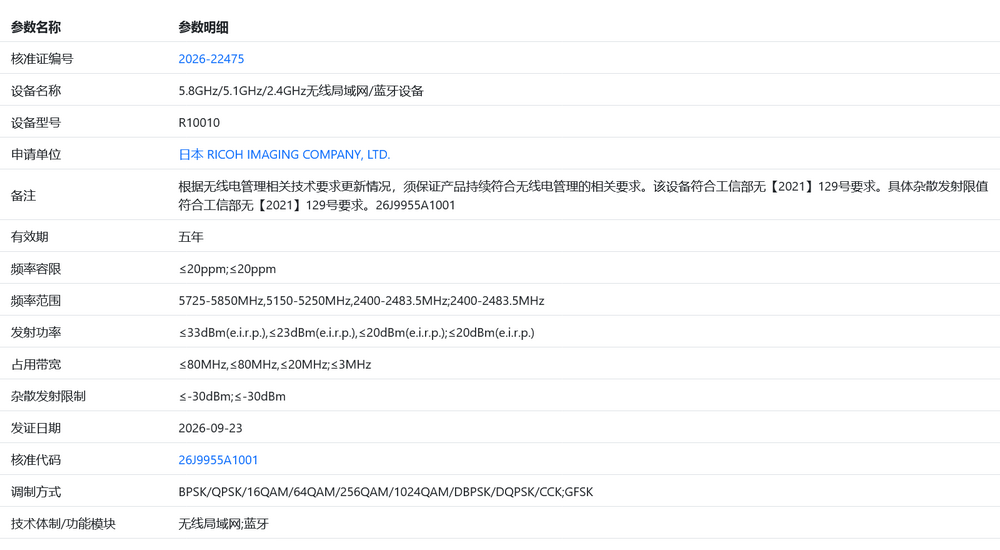
Ricoh Imaging registered a new digital camera in China with the codename R10010:


The new model is equipped with a tri-band Wi-Fi 6 module: 2.4, 5.1, and 5.8 GHz 1024-QAM, which stands for 10-bit Quadrature Amplitude Modulation, which corresponds to Wi-Fi 6. This is the same Wi-Fi module found in the Ricoh GR IV. The Ricoh GR IVx, which was announced two months ago, is the most obvious candidate:

Ricoh announces the development of a GR IVx camera with a newly designed 40mm lens

Via PentaxRumors

The post Ricoh registered a new R10010 camera appeared first on Photo Rumors.

  •  

Canon Camera Connect app: how well does it work?

We explored Canon’s connectivity app on both iOS and Android, to see how it behaves

Canon PowerShot V1 compact camera with flip-out screen showing the Smartphone connection menu screenRichard Butler

Easy smartphone connection is one of the most asked-for features we hear when talk to people about cameras, so we thought we’d investigate the current state of all the brands’ apps. Beyond a few frustrations, we found Canon’s Camera Connect to be one of the better options, at least with the recent cameras we had available to test.

Getting started

Before you can even use Canon’s Camera Connect app, you need to create a “Canon ID” using an e-mail address and password and log-in, which can be frustrating: it’s not entirely clear what benefit there is to the user of this. The app will also regularly ask you if you wish to register your camera with your Canon ID and will then remind you that you can do so, even if you say No. There’s no ‘do not show this message again’ option.

Camera menu screen with “Add a device to connect to” highlighted in purple.Richard Butler

To first connect the camera, you need to select your camera model from the app’s list of available models. This helps, in that it means the app should be able to guide you through the appropriate workflow for your camera model. 

Connecting the relatively recent PowerShot V1 to an Android phone was a case of using the displayed QR to download the app then starting the pairing process from the camera. With the app open and the camera trying to establish a connection, a pop-up box with the camera’s ID appeared on the app, letting me confirm Bluetooth pairing. I then had to confirm on the camera, too, then was good to go.

Bluetooth pairing dialog showing detected camera EOSR8m2_F022BD with Cancel button.
Open the app and initiate the pairing process from the camera and your camera’s ID should pop up on the app.
Richard Butler
Canon EOS R8 camera connected in a mobile app home screen.
Once paired, the app’s homescreen gives you the option to import images or engage live view shooting.
Richard Butler

Once the two devices were paired, it was just a case of opening the app and waiting for a bluetooth connection to be established. As soon as the bluetooth icon lights up in the app, you get the choice of importing images from the camera or to engage live view remote shooting. 

Wi-Fi connectivity

Selecting either of these options tells the camera to turn its Wi-Fi on, and after a few moments the phone asks permission to connect to the Wi-Fi network the camera has established. Click ‘Connect’ and it establishes a connection fairly quickly.

Android dialog in Camera Connect app asking to connect to Canon EOSR8m2 temporary Wi‑Fi network.
The Android app will ask your permission to connect to the camera’s Wi-Fi network, when you’re first pairing them.
Richard Butler
iPhone screen showing a Canon Camera Connect Wi‑Fi join prompt for EOSR8m2-876_Canon0A.
The iOS version of the app asks for permission to connect to the camera’s Wi-Fi network every time you re-establish a connection.
Richard Butler

On iOS you have to approve the network connection each time you re-establish a camera-to-phone Wi-Fi connection, whereas Android is happy to trust it, once you’ve given it permission the first time.

Photo gallery grid showing city scenes, beer glasses, a woman, and Big Ben thumbnails dated Apr 25, 2022.
sThe Images on camera option shows all the images on your camera’s storage card, and lets you filter by date or file type. The Apple version of the app lets you download JPEGs, HEIFs or Raws. The Android version is JPEG only.
Richard Butler

The “Imaged on camera” option, once the Wi-Fi connection has been established, shows all the images currently on the camera’s card. On Android, you can only import JPEGs, and the camera will generate a JPEG if you try to import a Raw file. On iOS, the app is happy to transfer JPEG, HEIFs or Raws, probably because all three file types are supported by Apple’s operating system, so it knows what to do with the files. If you try to import an HDR HEIFs using the Android app it’ll tell you you have to manually convert the HEIF to a JPEG (and drop down to SDR) on the camera, first.

Remote live view shooting

Engaging remote live view shooting is a similar process: pressing the button in the app initiates a Wi-Fi connection that you’ll need to approve each time on the iOS version. You’re then given a live feed from the camera with an interface that lets you control a lot of the camera’s settings.

Camera app view of houses on a rainy residential street with a utility pole in the foreground.Richard Butler

You can adjust exposure settings, drive mode, AF mode, white balance and so forth. You can’t change exposure mode, though or, at least, not on a camera whether that’s set using a physical dial. You don’t get fine-grained control like WB fine tune and some functions can be greyed-out for reasons that aren’t obvious.

Camera app viewfinder showing a zoomed in viewRichard Butler

Although not enabled by default, you can set the app to let you double-tap to zoom in the live view display to the area around the AF point. With this done, the manual focus function that lets you drive the focus forward or backward with three degrees of subtlety becomes much more useful, though the zoom only punches in to the 5x level of zoom, not the really fine 10x option you can get on the camera’s rear screen.

Camera app settings overlay with toggles over a live view of a house.Richard Butler

Taking photos in live view shooting mode does not transfer them to the camera: you’ll need to leave the live view shooting option and switch back to the “Images on camera” function. You can review your images and even give them a rating, but that’s it.

Further functions

Away from the App’s Home tab is another called “Functions,” which will show the other modes and functions available with whichever camera you currently have connected.

Canon camera connected in a mobile app home screen with function tiles and disconnect button.Richard Butler

So, for example, most cameras have an Auto Transfer option, that lets you automatically send images from your camera to your phone, as you take them. With this function you have the choice of whether to downsize the files (to 1MB 1620 x 1080px files) before transfer and the option to remove location data from the transferred images.

This mode only continues to function while a Wi-Fi connection is maintained and the Auto Transfer function is still active in the app. Auto Transfer can’t be used in conjuction with the live view shooting mode, frustratingly. Auto Transfer can’t send Raws and won’t send HDR PQ HEIFs, either.

Also in the Functions tab are a ‘Bluetooth remote control’ function, an option to share the smartphone’s location data with the camera, to add it to images as you shoot them, and the ability to send your phone’s date and time to the camera, with the option to update these settings every time you reconnect the app. This last feature sounds especially useful when traveling across time zones.

Camera date/time settings screen with automatic setting toggle, manual date and time fields, area, and daylight saving time switch.
You can share your phone’s time and date to your phone. Handy for travel
Richard Butler
Smartphone app screen showing location information settings with GPS being sent to the camera.
You can also share your phone’s location info to your camera, which it then embeds in the EXIF
Richard Butler

There’s also the option to set your camera up to connect to local Wi-Fi networks, which then lets you engage its Cloud upload and Live Streaming features. You can also do this from the camera itself, but it’s likely to be easier to find and connect to Wi-Fi networks from the app in your phone, rather than having to navigate an on-screen keyboard in the camera’s menus.

Newer cameras may include the option to download Custom Picture color profiles for video from Canon’s LUT library. This downloads standard .cube LUTs to your phone, from where you can push them to your camera. Via a rather convoluted process, you can then save these LUTs into one of the Custom Picture slots in your camera and save them to the SD card to simplify the process in future.

The final option in a link to the camera’s online instruction manual. The precise behavior may depend on how your local Canon subsidiary uploads its manuals, but in the US, at least, you get the choice of the user manual as html pages or in pdf form.

USB connection

What really sets Camera Connect apart from many other manufacturer apps is the ability to connect the two devices directly with a USB cable. Canon’s recent cameras have a “Choose USB connection app” menu option at the end of their network settings menu. Android users can leave it in the default “Photo Import/Remote Control” setting, whereas Apply users will need to select “Canon app(s) for iPhone.”

Camera menu for choosing a USB connection app, with “Canon app(s) for iPhone” highlighted.
Both the Android and iOS versions of the app can make direct connections over USB, but you have to set the camera to a special USB mode to work with an Apple phone.
Richard Butler

Once this is set, connecting a cable between the devices lets you jump straight into features such as image import, live view control or auto upload, that usually require a Wi-Fi connection. The Android version even asked whether you want Camera Connect to be automatically opened, when you connect your camera.

Canon EOS R8 camera shown in a camera app home screen.
Simply connecting the phone and app using a USB cable will let you use most of the modes that usually require a Wi-Fi connection. Only faster, and with none of the hurdles of pairing.
Richard Butler

This USB route is much faster than Wi-Fi and doesn’t require any pairing in advance. The camera doesn’t need to recognize the phone and you won’t need to select which phone to connect to, if you have more than one pairing registered: you just plug in and go. Even with a USB connection, the Android app won’t let you transfer Raws.

Other Apps

Finally, beyond the Functions tab, the Camera Connect app has an ‘Apps’ tab that lets you download Canon’s other smartphone apps, including its Selphy printing app and the EOS Webcam Utility Pro app.

Bluetooth connection success screen with Canon camera registration prompt and Register and Later buttons.
You’ve done something. Would you like to register your camera with your Canon ID?
Richard Butler
Canon app Bluetooth connection screen with a pop-up about registering additional cameras and an OK button.
Are you sure? You can do it later if you like. But what you can’t do is stop the app asking you. Constantly.
Richard Butler

Each time you open the app, it connects to Canon’s servers and checks for firmware updates for the currently active camera model. If an update is available, the app can show you the change log and let you download the firmware to your phone. It’ll then establish a Wi-Fi connection to the camera to transfer the firmware update file. 

Only once that file has transferred completely to the camera are you asked if you want to update the firmware, so you don’t have to worry about connection status during the update.

About the Author: Richard graduated as a scientist but had a lot more fun writing and shooting for his university magazine. A number of years spent variously as a reporter, writer and editor on science and engineering titles combined his knowledge of science with his interest in images and words. But it was spotting the connections between emission spectra, white balance and all the nonsense he’d taught himself playing around in Photoshop that helped kindle an interest in digital photography. Searching for a camera led to him discovering DPReview and Richard was recruited by Phil Askey in 2007. He’s been combining his love of photography, communication and attention to detail (pedantry?) ever since. He has unusually strong opinions about lenses for the APS-C format.

Want to stay up to date on the latest product news and releases? Add DPReview as a preferred source to ensure our independent journalism makes it to the top of your Google search results.

  •  

The latest photo editing software news

First, here are some coupon codes for photo editing software:

The latest photo editing software news:
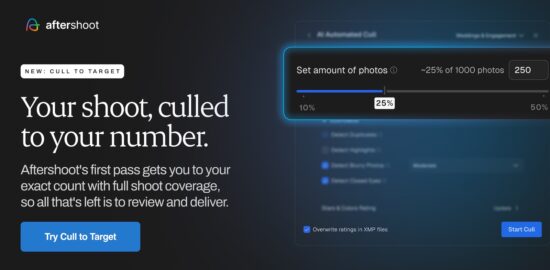

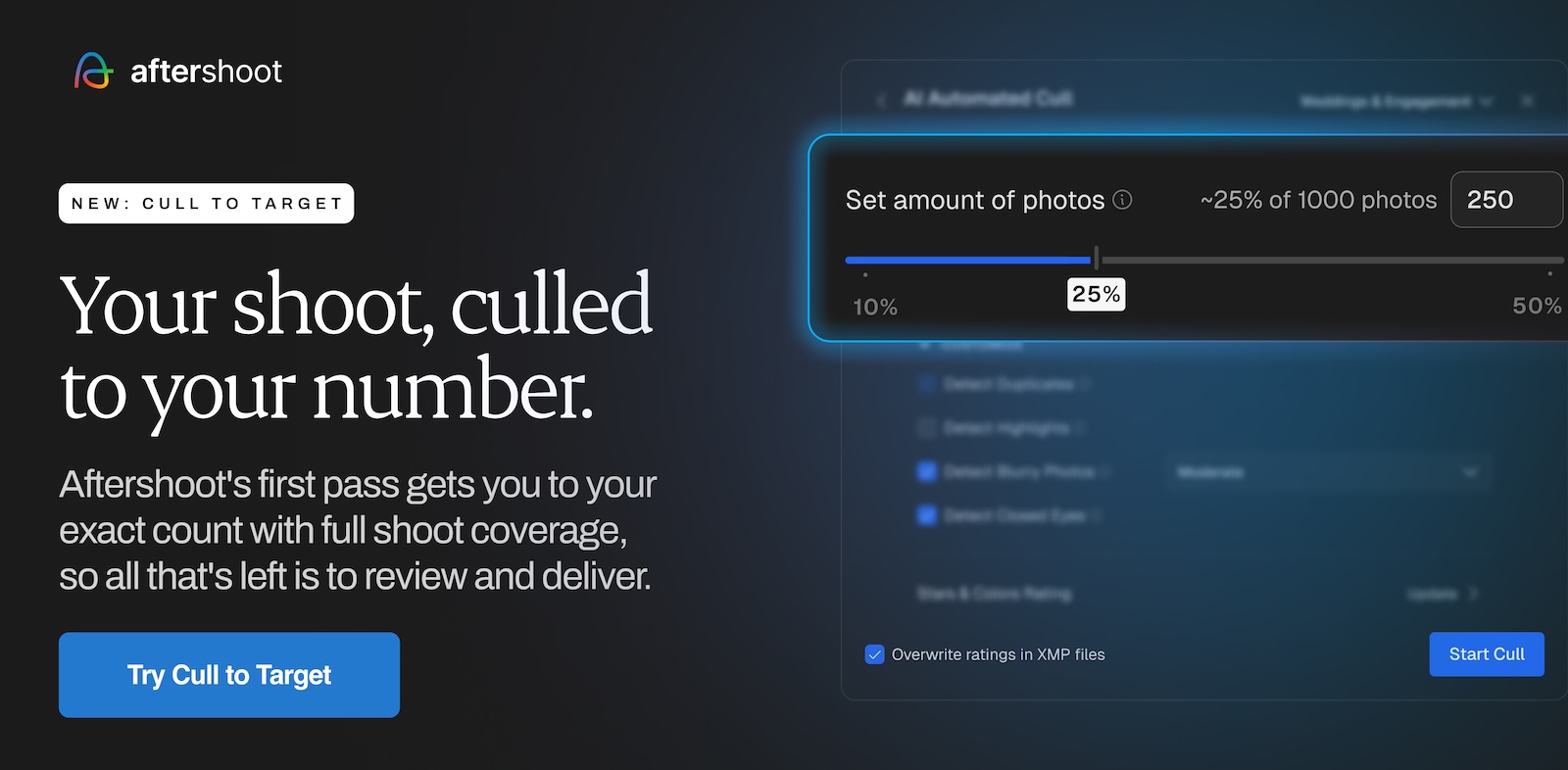
→ Aftershoot’s latest update includes Cull to Target, Improved Highlights, and People Filters:

  • Cull to Target. Choose how many photos you need, and Aftershoot selects exactly that many for you to review.
  • Improved Highlights. A stronger shortlist from your selects, so you can share sneak peeks with clients sooner.
  • People Filters. Find specific people in a shoot and review their photos without scrolling through everything.
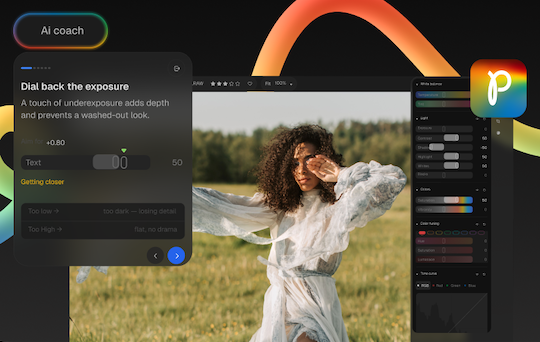

→ Aftershoot released Photon: a free RAW editor for macOS and Windows.


→ Affinity and DxO announced a partnership (no subscription required; DxO PhotoLab version 10.1 released – is a perpetual license):

“Your edit no longer stops here. Develop your RAW file in PhotoLab, then send it straight to Affinity as a native .af file, ready for pixel-level editing. RAW perfection on one side, creative freedom on the other. Affinity is free on Mac and Windows.”
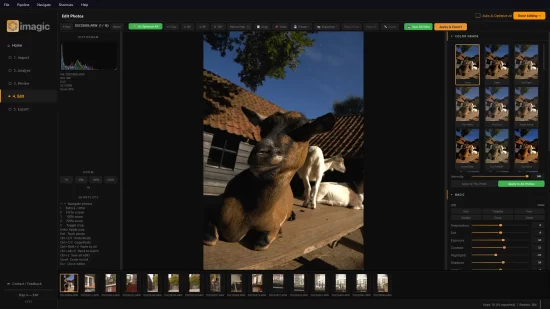

→ Imagic is a new desktop photo software for Windows and macOS. It culls a shoot with AI (scoring every frame and grouping bursts and duplicates), then edits and exports the keepers in the same app. Photos are processed on your own computer and are never uploaded.


→ Adobe completed the acquisition of Topaz Labs (more info).


→ Skylum removed the portrait editor Aperty from the app. Aperty will be discontinued on November 4th.


→ Adobe updated their apps on September 29th:


→ Adobe now has a real reason to cry: ArtCraft built almost every App that Adobe makes using Rust.

You don’t have to be a paying member to get discounts from those brands

The post The latest photo editing software news appeared first on Photo Rumors.

  •  

Generative AI scandal has come to one of Nikon’s competitions

The company has stripped an entry to its Small World In Motion competition of its first place prize.

Nikon logo with black text centered below a yellow square containing white diagonal rays.Nikon

Photo and video competitions have had to deal with fakes and forgeries since their invention, a task that’s become increasingly difficult in the age of generative AI. Many competitions have had to deal with revelations that entries – sometimes even winning ones – were faked or enhanced by AI. Now, it’s happened with one sponsored by Nikon.

The company has disqualified the video that won first place in its Small World in Motion competition, stating it “did not comply with the competition rules regarding generative AI.” That rule is relatively simple: “AI generated videos are not permitted and Sponsor holds the right to request the original video for verification.”

The video in question supposedly showed “abnormal beating of airway cilia in a child with primary ciliary dyskinesia (PCD), a rare genetic disorder affecting respiratory function,” and the original press release announcing it as the winner had several paragraphs describing the importance of the imagery and how it was captured.

The statement doesn’t say is what role generative AI played in the video’s creation

Nikon’s statement says the decision came “after thoroughly re-evaluating the video and supporting materials and consulting with members of our judging panel.” It also clarifies that the decision “is based solely on the submitted video’s eligibility under the rules outlined for this competition” and “should not be interpreted as a judgment of the entrant’s professional reputation, scientific contributions, or intent.”

What the statement doesn’t say is what role generative AI played in the video’s creation; whether it was fully synthetic, or if it was used to edit something that was once a real image. You can still see it in news coverage of the competition and it looks otherworldly, but, to me, that’s the case for authentic microscopy videos, too. The BBC says the winner “acknowledged using AI,” and reports that other scientists raised the alarm about the video, with one expert in PCD saying that the cells in the video “look nothing like those from PCD patients.”

The new winning video. “A tiny roundworm and a single-celled Dileptus explore their microscopic world.”
Nguyen Nam OME | Chu Se, Gia Lai, Vietnam | Differential Interference Contrast (DIC) | 40X (Objective Lens Magnification)
Nguyen Nam Nhat / Nikon Small World

The company says the incident shows it needs to re-evaluate its rules and procedures moving forward, though as AI tools and people’s familiarity with them and willingness to use them advance, it seems likely that this will continue to happen, despite a growing market of tools designed to identify AI-generated or edited content. The reality is that many of the existing tools are, essentially, guessing, or rely on watermarks embedded by tools made by companies acting in good faith. Someone looking to enter a doctored or generated video into a competition would be able to bypass those relatively easily.

In light of the incident, Nikon has changed the rankings of the Small World In Motion competition, which awards a prize of $3000 for first place. That spot has been awarded to the former second place winner, Nguyen Nam Nhat, who submitted a video of “a tiny roundworm and a single-celled Dileptus” moving around. Second place now belongs to Benedikt Pleyer’s video of jellyfish larvae, and third place goes to Dr. Andrew Moore for their video of “synchronized cell division in neighboring cells.” You can view all the winners on the Nikon Small World website.

About the Author: Mitchell started taking pictures at 10 and hasn’t stopped since. It’s been a wide-ranging adventure, spanning a wide variety of genres and locales, and occasionally dipping into fascinations with video and filmmaking. They honed their technical knowledge doing documentation, programing and QA, writing for The Verge, and just generally messing around on the computer to see what breaks.

Want to stay up to date on the latest product news and releases? Add DPReview as a preferred source to ensure our independent journalism makes it to the top of your Google search results.

  •  

Google releases a free tool to check for an increasingly common AI watermark

SynthID Detector has its limitations, but is an important part of an ecosystem.

SynthID Detector logo featuring a shield icon containing a four-pointed star.Mitchell Clark

Google has made its free tool for identifying SynthID watermarks available to the general public, potentially making it easier to tell whether what you’re looking at was created by or edited with generative AI. While the tool is only looking for a watermark, rather than analyzing the image to see if it’s AI-generated, an increasing number of companies are starting to add SynthIDs to the images, video and audio generated by their AI tools.

The tool, called SynthID Detector, is relatively simple. You can upload an image, video file or audio clip to it, and it will scan for a SynthID. Google says that AI tools from itself, Nvidia, OpenAI and Kakao use the standard, so the tool should be able to tell whether AI was used to create the thing you’ve uploaded. Apple has also promised to start using SynthIDs to watermark its AI-powered photo manipulation tools later this year.

Jersey with FLOWERS 8 on the back being used to sign baseballs in a stadium tunnel.
This image was originally a black and white film photo, but was colorized using Google Gemini, which added a SynthID watermark to its output. The tool was then able to detect it.
Mitchell Clark

Rather than try to add easily-removed metadata, SynthIDs are invisible watermarks added to AI-generated media, which should theoretically survive modification like cropping, adjusting colors or being compressed by a platform that isn’t even attempting to preserve the watermark. Also importantly, the watermark shouldn’t be detectable in the final output.

There is one somewhat annoying gotcha with the tool: it requires you to sign in with a Google, Apple or OpenAI account to actually check anything. This extra friction may be enough to dissuade someone from casually checking an image, and doesn’t really feel like it should be necessary.

It’s also worth noting that it is very limited. While many major players are represented in the list of companies on board with SynthID, there are plenty that aren’t. As the tool’s homepage warns, it doesn’t detect whether the image was made by AI, it can only tell you whether it was made with a specific subset of models. It’s also binary, only telling you if an image has a watermark or not. Unlike more robust (and, in some ways, more limited) tools like Apple’s Reference Image system or Coalition for Content Provenance and Authenticity (C2PA) Content Credentials, there’s no way to see the original image, or tell whether the AI simply tweaked a real photo or created an image wholesale.

Hanging angel’s trumpet flowers in a garden, shown in a SynthID detection interface indicating no AI-generated media.
This image was edited using with Apple Photo’s AI tools, but because those don’t yet bake in SynthIDs, the tool doesn’t detect it. Even if it could, though, it wouldn’t be able to tell me that the image is a real photograph that’s had part of it erased using AI, rather than an entirely synthetic image.
Mitchell Clark

Still, it’s an important piece of the puzzle as SynthID is gaining popularity. After all, a watermark isn’t particularly useful if it’s invisible and you have no way of checking it. You’ve been able to ask Google Gemini if an image has a SynthID watermark in it for a while now, and Google’s Chrome browser and Search engine will flag images with them in some cases, but the detector is a much lighter-weight solution, and provides an option for those who may be checking an image because they’re morally opposed to using AI, and who likely wouldn’t view being able to ask an AI chatbot about it as an acceptable option.

About the Author: Mitchell started taking pictures at 10 and hasn’t stopped since. It’s been a wide-ranging adventure, spanning a wide variety of genres and locales, and occasionally dipping into fascinations with video and filmmaking. They honed their technical knowledge doing documentation, programing and QA, writing for The Verge, and just generally messing around on the computer to see what breaks.

Want to stay up to date on the latest product news and releases? Add DPReview as a preferred source to ensure our independent journalism makes it to the top of your Google search results.

  •  
❌