Vue lecture

Enlarging a small photo for a large print without quality loss

Enlarging a small photo for a large print without quality loss.

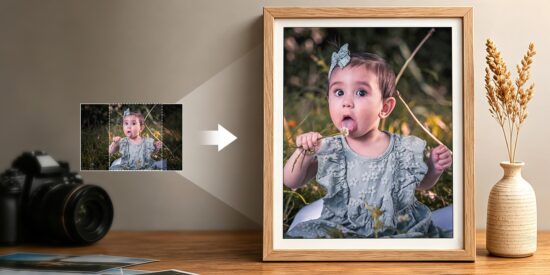
A photo can look perfectly sharp on a monitor and still look noticeably softer when printed at 20 × 30 or 24 × 36 inches. When the source file doesn’t have enough resolution for that print size, enlarging it can make fine details look softer and edges less defined.

Wildlife is a good example. A 12MP DSLR can produce a perfectly usable photograph, but if the subject occupies only a small portion of the frame, cropping can leave only a fraction of the original pixels for the final image. The same thing can happen with a modern high-resolution camera- a 45MP file sounds like plenty, but a heavy crop can quickly reduce the resolution available for a large print.

I’ve tried standard resizing, sharpening, and dedicated AI upscaling tools to deal with this problem over the years. I can get very good results with Lightroom and Photoshop, too, especially when I’m willing to spend more time fine-tuning the image. The same is true of more specialized upscaling tools—the results can be excellent, but getting there sometimes takes a fair amount of hands-on work. So I was a little skeptical when I first tested Aiarty Image Enhancer.

After trying it on a range of photos, I was pleasantly surprised by how clean and natural the results looked. In many cases, I could move the enlarged file into the rest of my editing workflow without additional cleanup. It became a useful option when a cropped or low-resolution photo didn’t have enough pixels for the print size I wanted.

How Aiarty Enlarges Photos for Large Prints

When I prepare a photo for a larger print, I first look at how far the cropped file is from the pixel dimensions I need.

This is where I usually turn to Aiarty. If the file is only slightly short, I usually start with 2× rather than pushing the image further than necessary. For a heavily cropped or very small source, I may go to 4× or 8×, depending on how the result holds up. If I already know the final print dimensions, I can also set a custom output resolution and choose a suitable DPI for the final print workflow.

When enlarging a photo for a large print, things like high-ISO noise, compression artifacts, and slight softness can become much more obvious. I used to expect some cleanup after upscaling, but with Aiarty, I often get a cleaner starting point without having to spend as much time fixing those issues manually. I can then take the enlarged file into Lightroom or Photoshop for the final adjustments.

You can try Aiarty Image Enhancer for free to see how it enlarges your own photos before committing to a larger print. A 49% off lifetime license is also currently available for 3 PCs or Macs, with no subscription fee and free lifetime updates.

Real Test #1: Enlarging Wedding and Portrait Photos

Wedding and portrait photos are a good test for large-print enlargement because they are often printed as wall portraits or framed enlargements. Once I looked closely at the enlarged file, even small flaws in facial details, hair, and skin texture became easier to spot.

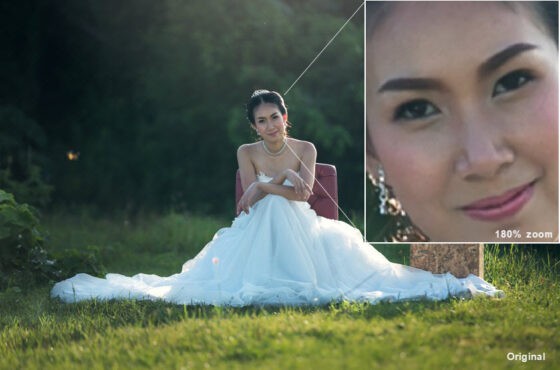
For this test, I started with a 3500 × 2333-pixel wedding photo. On paper, it’s a healthy file for standard albums. But when I checked the numbers for a 20 × 30-inch wall print, it dropped the native resolution to a meager 117 PPI. At that size, the print could look noticeably softer up close

Alt: Original wedding photo with blurry facial details at 180% zoom

I enlarged the image 2× with Aiarty, producing a 7000 × 4666-pixel file. At the same 20 × 30-inch print size, that increases the pixel density to about 233 PPI. That gave me a much more comfortable starting point for the 20 × 30-inch print than the original file.
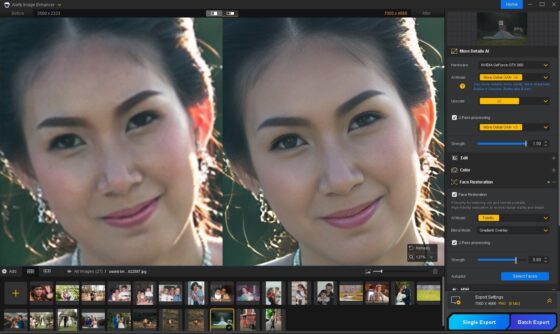
Alt: 2× enlarged in Aiarty, More-Detail GAN model, Face Restoration enabled

Real Test #2: Enlarging a Cropped Wildlife Photo

Wildlife photography is a revealing test for photo enlargement because the subject often occupies only a small part of the frame. A high-resolution original can lose a significant amount of its available pixels after a tight crop.

Here, the cropped image was 1728 × 2592 pixels, taken from a much larger original. At 200% on screen, I could already see some noise and softness in the feathers.

I wanted to use it for a 16 × 24-inch wildlife wall print. So I enlarge it 2x to 3456 × 5184 pixels. The feather detail was easier to see, and the noise was less distracting. The additional pixels also provided more room for larger prints without changing the original composition.
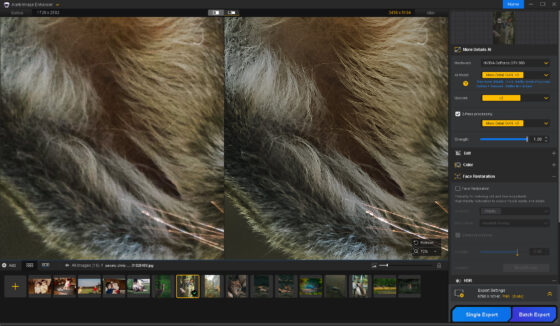
Alt: Aiarty 2× enlarged wildlife photo, More-Detail GAN model

With feathers, I was careful not to push the sharpening too far, since it is easy to turn fine texture into something hard and artificial. I noticed that the sharpening could be adjusted based on how much detail was already there. That made it easier to stop once the image looked clearer without making the fine texture look unnaturally crisp.
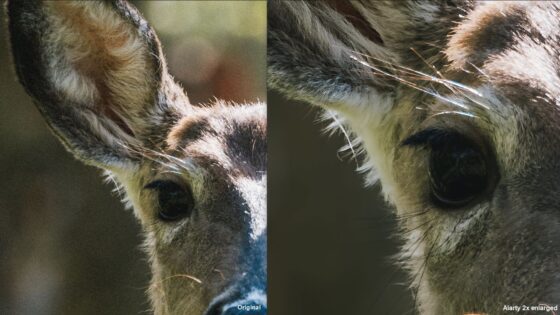
Alt: Original photo 100% crop vs Aiarty 2× enlarged photo 100% crop

Real Test #3: Old Family Photos and Small Scans

Some of the most meaningful photographs were never captured at high resolution in the first place. Old family photos often exist as small scans or low-quality JPEGs, with faces already looking soft before any enlargement takes place.
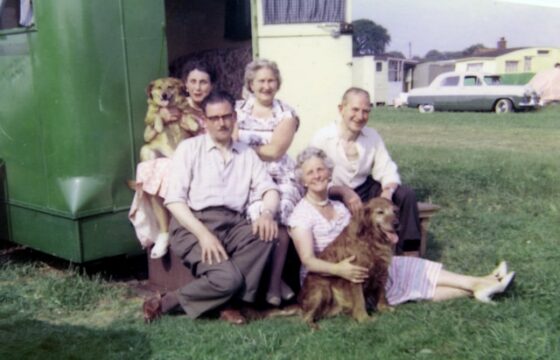
Alt: Source old family photo, 640 × 427 pixels, all faces are blurry in the photo

The source image was only 640 × 427 pixels. The original was quite blurry, and the facial details were difficult to make out. Because the file was so small, I knew I would need more than a simple 2× enlargement if I wanted to make a useful framed print. I went with 4×, bringing the image to 2560 × 1708 pixels. The enlarged image looked noticeably clearer overall and was suitable for the larger print I had in mind.

The faces were the area I watched most closely, as they were already soft in the original scan. This is where I found Face Restoration particularly useful. It made the facial features easier to see while keeping them looking natural, and I could adjust the strength if the enhancement started to feel too strong.

At 8 × 12 inches, the 2560 × 1708-pixel output provides about 213 PPI, compared with only about 53 PPI from the original file. For me, that made the enlarged version much more practical for a framed print while still preserving the character of the original scan.
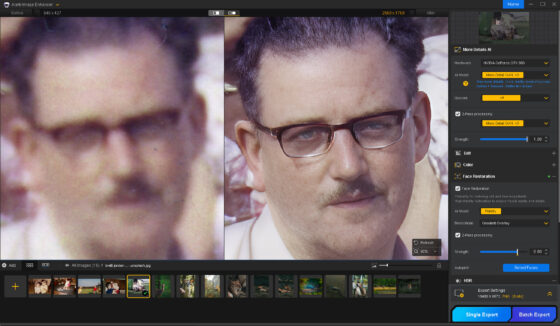
Alt: Aiarty 4× enlarged old photo, Face Restoration enabled (80% restoration strength)

Real Test #4: Product Photos for E-Commerce and Large Displays

Product photography is another area where low resolution can really bite you. If you need to repurpose a smaller product shot into a large display or poster, any softness or pixelation instantly makes the item look cheap and unpolished to potential buyers.

For this test, I used a 1920 × 2400-pixel photo of a doughnut. Even at 100%, some fine details looked soft and weren’t as clear as I wanted. I then enlarged the image 2× with Aiarty, bringing it to 3840 × 4800 pixels.
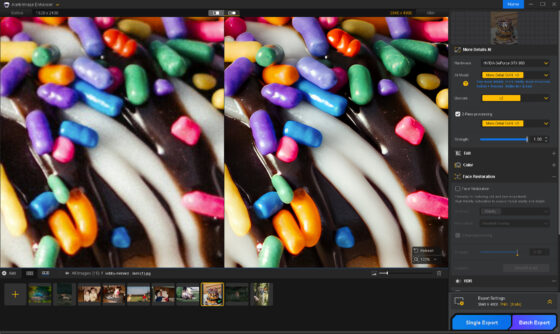
Alt: Aiarty 2× enlarged product photo, More-Detail GAN model, 2-Pass processing enabled

The source also had some visible noise and compression artifacts, so I decided to use 2-path processing rather than simply enlarging the file in one pass. After processing, the chocolate drizzle, colorful sprinkles, and doughnut texture looked cleaner and more polished, closer to what I would expect from a professionally finished product photo.

Alt: Original vs Aiarty 2× enlarged detail comparison of the doughnut photo

My Large-Print Workflow in Aiarty Image Enhancer

1. Start with the Best Original and Final Composition

Whenever possible, I start with the RAW file or highest-quality JPEG/TIFF rather than a compressed or social-media copy. I also make sure the image has the final framing I want before enlarging it.

If the photo needs to be cropped, I crop it first. The crop determines how many pixels I actually have available for the final print. If the composition is already right, I can simply move on to enlargement.

2. Calculate the Target Dimensions

I work backward from the final print size to estimate how many pixels I need and whether the image requires 2×, 4×, or a larger enlargement.

A Nikon D90, for example, produces 4288 × 2848 pixels. At around 150–200 PPI, that can already be enough for many large prints without enlargement. The main issue comes when the image is tightly cropped and much of that original resolution is lost.

Here are the pixel requirements for common print sizes at different PPI levels:

Print Size

300 PPI

240 PPI

200 PPI

150 PPI

8 × 10 in

2400 × 3000 px

1920 × 2400 px

1600 × 2000 px

1200 × 1500 px

12 × 18 in

3600 × 5400 px

2880 × 4320 px

2400 × 3600 px

1800 × 2700 px

16 × 24 in

4800 × 7200 px

3840 × 5760 px

3200 × 4800 px

2400 × 3600 px

20 × 30 in

6000 × 9000 px

4800 × 7200 px

4000 × 6000 px

3000 × 4500 px

24 × 36 in

7200 × 10,800 px

5760 × 8640 px

4800 × 7200 px

3600 × 5400 px

These are target dimensions rather than strict quality limits. A large wall print does not always need 300 PPI, especially when viewed from several feet away. Cropping, viewing distance, and print medium all affect the practical resolution needed.

For example, a 2000 × 3000-pixel crop printed at 16 × 24 inches provides about 125 PPI. A 2× enlargement brings it to 4000 × 6000 pixels, or about 250 PPI at the same size. This is a more typical situation where AI enlargement can help bring a cropped image closer to the target resolution.

3. Upscale and Fine-Tune in Aiarty

I start with the appropriate AI model and a moderate enlargement, then adjust the Strength Slider while checking details such as feathers, skin, product edges, or fine textures. If the image needs a quick crop, size adjustment, or minor color correction, I can also handle that here instead of moving the file between different apps.

Before exporting, the output DPI can be set according to the requirements of the print workflow. For more advanced retouching, I then move the enlarged file to Lightroom or Photoshop for final color and editing.

Final Thoughts

If you are planning to print your photos at a large size, you don’t necessarily have to be limited by the megapixels of your camera. As the examples above show, the right enlargement process can give a lower-resolution or heavily cropped image enough additional resolution for larger prints while keeping important details looking natural. Aiarty Image Enhancer is one option I use when a standard resize isn’t enough.

If you’re preparing photos for large prints, Aiarty Image Enhancer is currently 49% off at $79 (originally $155) for a lifetime license covering 3 computers. There’s no subscription fee, and lifetime updates are included.

The post Enlarging a small photo for a large print without quality loss appeared first on Photo Rumors.

  •  

MyBoook.com is a new website & gallery builder that automatically syncs with Adobe Lightroom (coupon code included)


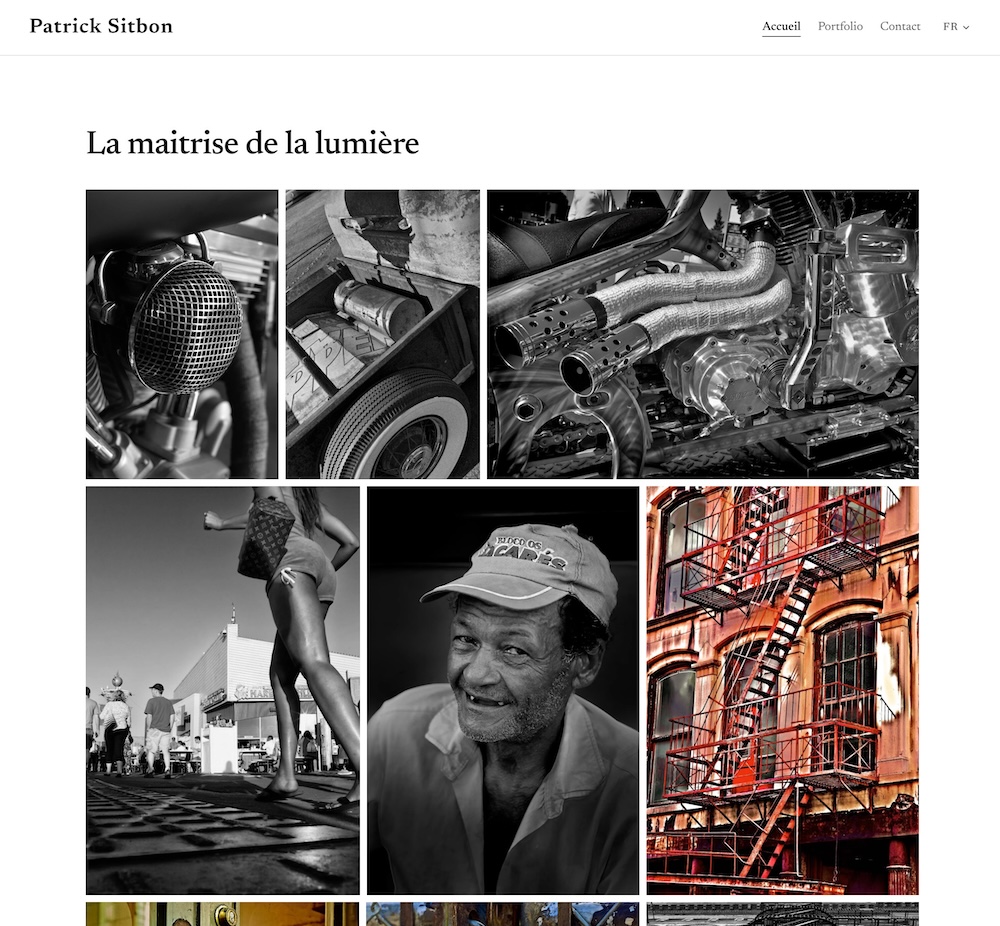
MyBoook is a website builder for photographers built around Adobe Lightroom. You connect your Adobe account, choose which albums you want public, and they become live galleries on your own website – no manual upload, no re-export. Edit or add a photo in Lightroom and the site follows. On top of the portfolio, you get a print shop with Stripe payments, private client galleries, an Instagram feed, a custom domain, and multilingual pages. Plans start at $9.90/month.

  
WHY IT IS DIFFERENT

Most portfolio platforms ask you to export, resize, and re-upload your photos, then do it all over again when you re-edit. MyBoook plugs into the Lightroom cloud instead: your catalog stays the single source of truth, and the website is just a view of it. The integration runs on Adobe’s official partner API and went through Adobe’s review process.
WHAT IS INCLUDED

  • Adobe Lightroom sync: albums become galleries automatically
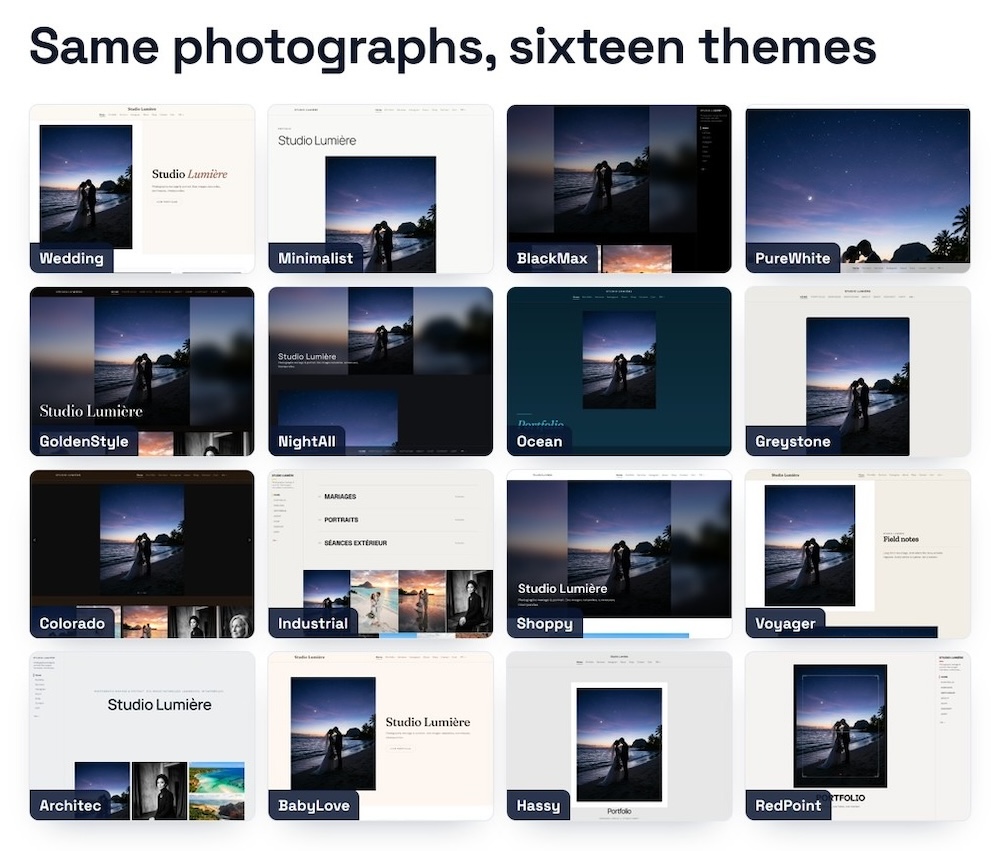
  • 16 themes, customizable fonts and colors
  • Unlimited private client galleries
  • Print shop with secure Stripe payments (the money goes to the photographer’s own Stripe account)
  • Instagram feed pulled into the site
  • Custom domain (or a free name.myboook.com subdomain)
  • Multilingual sites and a full back office
  • Google/SEO settings built in
  • Pro plan adds a free-form page composer, reusable layouts, and the Community where photographers share and sell their own themes

PRICING

  • Casual: $9.90/month or $99/year
  • Pro: $19.90/month or $199/year
  • No commitment, cancel in one click.

COUPON CODE

You can use coupon code PHOTORUMORS for 3 months free, one per person, on either plan – see the details on this page:

  • Monthly: the first 3 months are $0, then the normal rate of the plan they picked.
  • Annual: 3 months free instead of the usual 2, so the first year is $89.10 on Casual and $179.10 on Pro, then the normal annual price.

You can also just type PHOTORUMORS in the promo field at signup.


LINKS


The post MyBoook.com is a new website & gallery builder that automatically syncs with Adobe Lightroom (coupon code included) appeared first on Photo Rumors.

  •  
  •  

Here is what’s coming next in Aftershoot


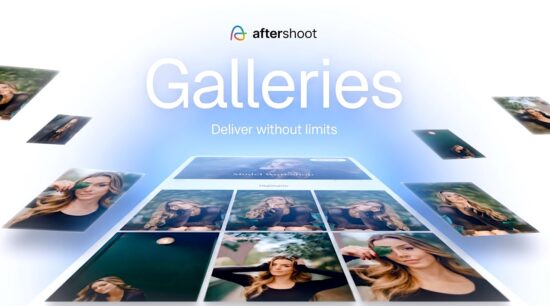
Here is what’s coming next in Aftershoot (free trial | galleries | previous coverage | “AI will not replace us“):

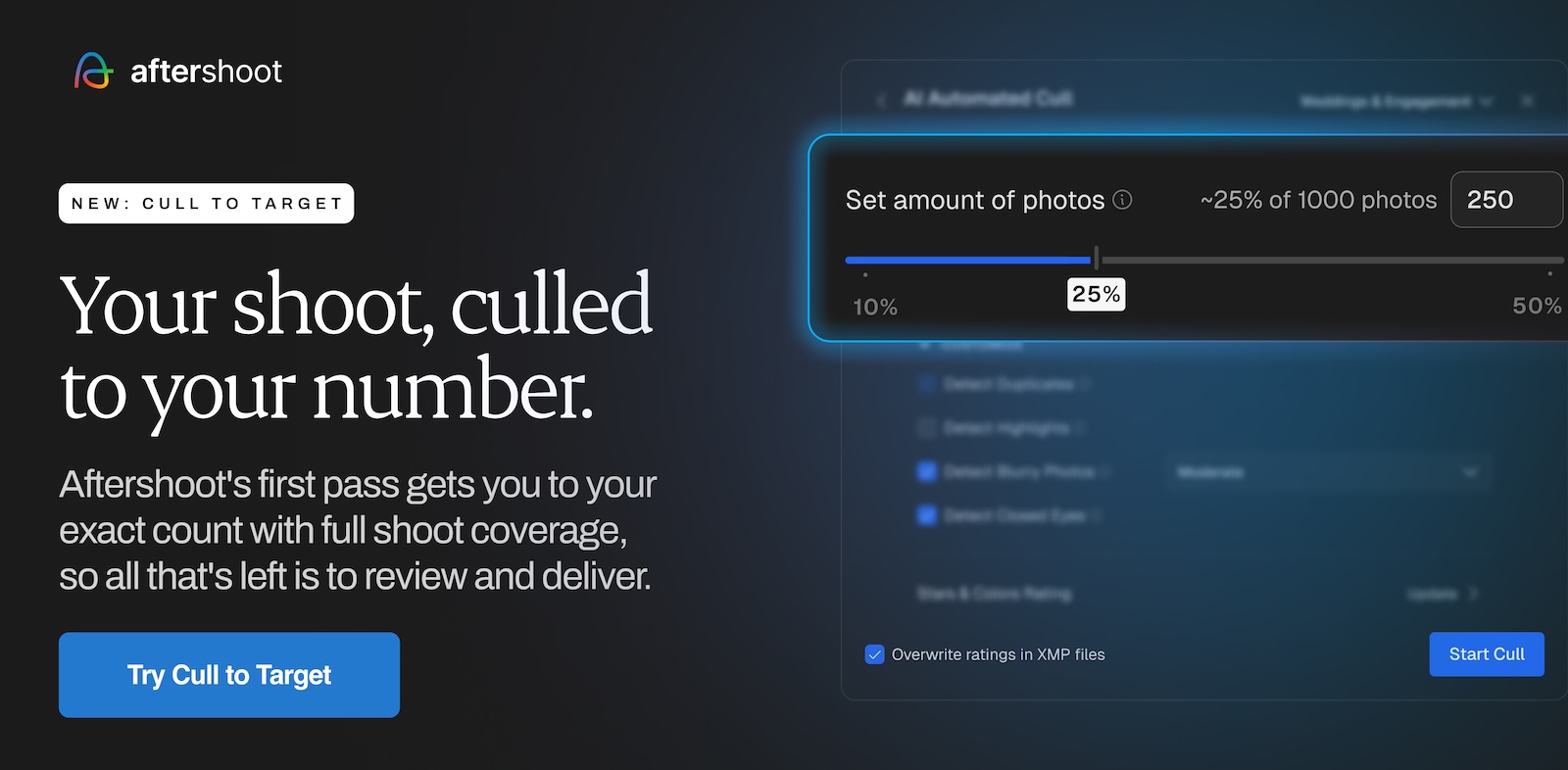
  • AI Culling: Cull to Target Beta, selection accuracy up from 79% to 83%, on-device Face Recognition, and Tethering Beta.
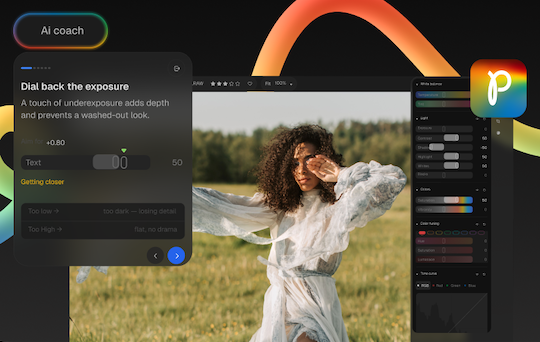
  • AI Editing: 5 new Creator profiles, 3 new Aftershoot profiles, Portrait & Headshot Crop, and exposure improvements.
  • Aftershoot RAW Engine: Tone Curves & Live Histogram, Clones / Virtual Copies, masking improvements, and Dynamic AI Learning.
  • AI Retouching: Double chin & dark circle removal, neck brightening, shadow generation in background replacement, and faster sync.
  • Gallery Sharing: More print labs (NPhoto, Loxley, Bayphoto), Brand Kits, Portfolios & Collections, and Sales Automation.
  • Aftershoot Photon: A free Lightroom alternative. Fast, native, and clutter-free.

Aftershoot: “The Workflow is Now Complete” and “AI that works for you, not against you”

Ending soon: DxO, Luminar, Aftershoot, and ON1 discounts

The post Here is what’s coming next in Aftershoot appeared first on Photo Rumors.

  •  

Ending soon: DxO, Luminar, Aftershoot, and ON1 discounts


DxO started a new summer sale where you can get 20% off any DxO software with the discount code SummerRumors2026 (valid for new customers only). This offer is valid until July 10th, 2026. See the latest DxO releases here. DxO recently introduced 965 new modulessee this page for details.


You can use the exclusive Luminar coupon code RUMORS20NEO for an additional 20% off on top of the ongoing Summer sale. The code is valid until June 30. Additional information on the Skylum Luminar Neo Summer Sale can be found here


ON1 Photo RAW 2026.4 21st Anniversary Sale: up to 60% off this month. See the latest ON1 releases here.


Use the coupon code RUMORS for a 15% discount at Aftershoot. See the details on their latest major release here.


Topaz Labs is offering 20% off a new plan.


Travel Photography Cheat Sheets summer sale: up to 88% off until June 30th.

The post Ending soon: DxO, Luminar, Aftershoot, and ON1 discounts appeared first on Photo Rumors.

  •  
  •  

Evoto AI: The AI Retouching Powerhouse


Evoto AI is a powerful, AI-driven photo editing platform built specifically for professional photographers who want to dramatically speed up their post-production workflow without sacrificing natural-looking results. It combines advanced per-face retouching, intelligent batch processing, color grading tools, and creative features like the AI Lab into one seamless system that supports the entire process – from tethered shooting and culling to final delivery. Available on desktop, mobile, iPad, and in the browser, Evoto helps photographers handle high-volume work efficiently while maintaining creative control.

Evoto AI: The AI Retouching Powerhouse

Professional photography has always been a race against time – especially after the shutter clicks. Between culling thousands of frames, meticulous skin retouching, stray hair removal, color consistency, and client delivery, post-production can eat up days that could otherwise be spent shooting or with clients.

Evoto AI (evoto.ai) positions itself as the solution: a specialized, AI-first photo editing and retouching platform built specifically for working photographers who need speed, consistency, and natural-looking results without sacrificing control.

Product Information & Key Features

Evoto is an all-in-one AI photo editing suite that covers the full workflow from tethered capture through culling, retouching, color work, and delivery. It runs as a native desktop app (macOS & Windows), with companion iPad/mobile apps and a browser-based version for lighter or on-the-go use. There’s also Evoto Video for portrait retouching and color correction on moving footage, plus an Instant Photo Gallery tool for client proofing and delivery. The software handles both RAW and JPEG files and is fast – users and benchmarks routinely report processing hundreds of images in minutes once presets are dialed in.

Standout AI capabilities include:

  • Per-face / subject-aware retouching: Skin smoothing that preserves natural texture (freckles, pores), blemish/acne/wrinkle reduction, skin tone balancing, glasses glare removal, stray hair cleanup (inside and outside the frame), red-eye fix, teeth whitening/straightening, and even “open eyes” fixes.
  • Body & clothing tools: Subtle slimming, wrinkle/de-blemish removal on clothes, and color-changing options.
  • Background & environment tools: One-click or masked background removal/clean-up, distraction removal, sky replacement, and backdrop enhancement.
  • Smart culling: AI quickly flags and removes closed eyes, blurry shots, and duplicates.
  • Batch intelligence: Apply edits or presets across a set; the AI adapts per image rather than applying blunt global filters.
  • Additional tools: AI-based old-photo restoration, color matching/grading, tethered shooting support, and a preset system with sync across devices.

AI Color Adjustments

AI Color Adjustments in Evoto AI combine intuitive manual controls with intelligent AI assistance to deliver fast, consistent, and professional color grading across single images or large batches. Photographers can fine-tune exposure, white balance, brightness, tone balance, HSL, curves, and color masking in a Lightroom-style interface, while AI-powered tools like AI Color Match intelligently transfer the tone, mood, and color profile from a reference image to an entire set – ensuring unified results even when lighting varies across a wedding, event, or portrait session. This hybrid approach allows for both precise creative control and automated corrections that adapt naturally to skin tones, backgrounds, and subject matter, dramatically reducing the time spent chasing color consistency while preserving a realistic, non-plastic look that clients expect from professional work.

AI Color Adjustments

AI Color Adjustments in Evoto AI is a comprehensive, intelligent color grading system that blends precise manual controls with powerful AI-driven tools to deliver fast, consistent, and natural-looking results for individual images or large batches.

The AI Color Tools provide an intuitive Lightroom-style panel for fine-tuning exposure, white balance, brightness, tone balance, HSL, curves, color masking, and filters, while AI-powered features like AI Color Match allow photographers to instantly transfer the tone, mood, and color profile from a reference image to an entire set -ensuring unified results even when lighting conditions vary across a wedding, event, or portrait session. Complementing these are the

AI Style (also referred to as AI Color Looks) provides one-click, AI-driven stylistic transformations that intelligently analyze each photo and apply a predetermined aesthetic or “vibe” with natural, adaptive results. With over 20 pro-grade options ranging from warm and cinematic to vintage film, bright modern, or clean natural looks, the algorithms automatically correct color, contrast, and tone to match the chosen style while respecting the original image’s lighting and subject characteristics. This makes it exceptionally powerful for high-volume workflows – such as applying a cohesive “film-inspired” or “high-end portrait” look across an entire wedding gallery in seconds – while still allowing photographers to tweak intensity or combine multiple styles for a custom signature aesthetic that elevates their brand without hours of manual grading.

Presets

Presets functionality in Evoto AI is a cornerstone of efficient, repeatable workflows, letting photographers save any combination of retouching settings, AI Color Adjustments, AI Styles, and manual tweaks as reusable, one-click presets that can be applied to individual images or synced intelligently across entire batches. Official recommended presets (Natural, High-End Portrait, Event, Cinematic, Family, etc.) provide excellent starting points, while users can easily create and organize their own custom presets, capturing a specific color grade plus skin and hair retouching, for example, and apply them consistently across future shoots or different devices via cloud sync. This system not only slashes editing time on high-volume jobs but also helps maintain a recognizable, professional style that strengthens a photographer’s brand identity and enables faster client deliveries.

AI Lab

AI Lab in Evoto AI is a dedicated creative hub (accessed via an icon in the top-left of the Edit interface) that houses advanced, high-resolution AI tools designed for complex editing tasks beyond standard retouching. It specializes in intelligent removal and compositing features, such as People Removal (with auto-detection and passerby selection to cleanly eliminate unwanted individuals from backgrounds), Smart Removal / AI Object Remover for distractions, and AI Background Fusion, which enables sophisticated cutouts and scene compositing, perfect for placing subjects into new environments like school gymnasiums, stages, or custom backdrops. These generative tools deliver professional-grade, full-resolution results while preserving natural lighting and edges, making them invaluable for wedding, event, school, and portrait photographers who frequently need to clean up busy scenes or create polished composites without hours of manual masking in Photoshop. By consolidating these powerful capabilities into one streamlined workspace with its own credit model for generative actions, AI Lab significantly expands Evoto’s utility from fast retouching into true creative production, helping photographers deliver cleaner, more polished final images efficiently.

Evoto Mobile and Evoto Online

Evoto Mobile and Evoto Online extend the power of Evoto AI beyond the desktop, giving photographers true flexibility across devices and locations.

The Mobile version (available on iPad and smartphones) delivers a full-featured AI editing experience optimized for on-the-go use, supporting portrait retouching, color correction, batch processing, preset application, and even tethered shooting directly from compatible cameras. This makes it ideal for location photographers who want to cull, retouch, and show clients polished previews in real time, often closing sales on-site before leaving the session.

Evoto Online is a browser-based editor that provides instant access to core AI tools without installing software, making it especially useful for quick edits, e-commerce product work, background removal, and color adjustments on any computer. Both versions sync seamlessly with the desktop app via the cloud, allowing photographers to start a project on their main workstation, continue refining on an iPad while traveling or at a client meeting, and even perform light edits or client proofing in a browser when needed. Together, they transform Evoto from a powerful studio tool into a complete, location-independent workflow solution that keeps high-quality AI retouching and color work accessible wherever the photographer works.

Evoto Beta and Stable Versions

When downloading Evoto AI, users can choose between the Beta and Stable versions, giving photographers flexibility depending on their priorities.

The Stable version is the recommended choice for most professional users, as it offers a thoroughly tested and reliable experience with fewer bugs, making it ideal for high-volume workflows where consistent performance is critical.

In contrast, the Beta version provides early access to the newest features, AI tools, and improvements – often updated weekly, allowing photographers to test cutting-edge capabilities before they reach the stable release. While the Beta channel is excellent for those who enjoy experimenting with the latest innovations and don’t mind occasional glitches, most working photographers opt for the Stable version to maintain smooth, uninterrupted editing sessions. Evoto makes it easy to switch between the two on their download page, so users can start with Stable for reliability and move to Beta when they want to explore upcoming tools.

Brand Description

Streamlining the workflow for professional photographers worldwide, powered by AI.

Evoto was founded with a clear mission: let AI handle the repetitive “pixel work” so photographers can focus on creativity, storytelling, and client relationships. The company (led by founder/CEO Mitta) has grown rapidly by targeting high-volume professionals – wedding, portrait, newborn, event, school, and commercial shooters, as well as studios that need consistent results at scale.

It claims a large global user base (1M+ photographers across 200+ countries/regions and tens of thousands of collaborating studios). The brand emphasizes ethical AI practices: images are not used to train models without consent, and the platform is GDPR/CCPA compliant with secure cloud options for collaboration and cross-device sync.

Recent expansions (desktop 6.x updates, mobile/Instant apps, and video tools) show Evoto evolving from a specialized retoucher into a broader workflow platform that competes with traditional tools while carving out its AI-retouching niche.

Workflow Examples & Real-World Use Cases

Typical high-volume wedding or event workflow:

  1. Shoot tethered (wired or wireless) directly into Evoto for instant previews and early polishing.
  2. Run AI Smart Culling to quickly eliminate blinks, blur, and duplicates.
  3. Apply or create a portrait preset (skin, hair, glare, teeth) and sync across the gallery, the AI handles per-face variations intelligently.
  4. Quick global or selective color grading.
  5. Export and deliver same-day or push to the Instant Photo Gallery for client viewing/proofing.

Many users report turning what used to be multi-day editing marathons into same-day or next-day deliveries, which improves cash flow and client satisfaction.

Portrait/headshot/fashion studio use case: Photographers often export selects from Capture One or Lightroom into Evoto for targeted cleanup (skin, stray hairs, clothes, background), then do final polish back in their main editor if needed. The per-face controls and masking tools make it excellent for preserving natural skin texture while quickly removing distractions.

On-location/mobile use case: With the iPad or mobile apps, photographers can retouch on-site, show clients polished previews in real time, and even close sales before leaving the location, a game-changer for tourist, event, or mini-session shooters.

Hybrid workflow tip (from working photographers): Do primary color correction in your usual raw processor, export selects to Evoto for AI retouching and cleanup, then finish any ultra-fine texture work in Photoshop only where necessary. This minimizes credit usage while maximizing speed.

Other niches: Newborn and maternity photographers appreciate the gentle, texture-preserving skin tools. E-commerce and content creators use the browser version for quick background removal and product cleanup. Video users are exploring newer video retouching tools to achieve consistent skin and color across talking-head or event footage.

Pricing & Value Proposition

Evoto uses a credit-based model that’s different from traditional subscriptions:

  • Editing, previewing, and most tools are free.
  • Exporting an image typically costs 1 credit per photo (some advanced generative features may cost more – you’ll see the exact cost before exporting).
  • Credits are purchased via annual subscription plans (best value, with rollover and cheaper add-on packs) or pay-as-you-go (more expensive per credit, 2-year expiration).

Approximate annual subscription tiers (as of mid-2026; check site for current):

  • Starter: ~800 credits (~$89/yr)
  • Basic: ~1,600 credits (~$149/yr)
  • Higher tiers scale up to 24,000 credits with better per-credit pricing and add-on discounts.

Pay-as-you-go options start around 200 credits for ~$49. New users usually get starter credits (often 15+), and referrals can add bonus credits.

Value verdict: For high-volume pros who deliver hundreds or thousands of images per month, the time savings (often cited as 5+ hours/day or cutting multi-day jobs to an hour) can easily justify the cost and even increase profitability by enabling faster turnarounds or bringing retouching in-house. Hobbyists or very low-volume shooters may find the credit model less attractive. Some users have noted past price adjustments, so it’s worth modeling your typical monthly exports before committing.

Pros & Cons

Pros:

  • Exceptionally fast and natural-looking portrait and subject retouching.
  • Intelligent batch/sync tools that adapt per image.
  • Strong tethered + culling + retouch + delivery workflow in one app.
  • Cross-platform sync (desktop ↔ iPad ↔ mobile).
  • Ethical/privacy stance and regular feature updates.
  • Free to experiment until you export.

Cons:

  • The credit system requires planning (especially for very high volumes or if you re-export after external edits).
  • Not a full layer-based compositor like Photoshop – best used for targeted cleanup rather than heavy compositing.
  • AI tools (especially culling or complex backgrounds) sometimes need manual refinement.
  • Extreme close-ups or ultra-high-end skin texture work may still benefit from finishing in Photoshop.

Overall verdict: Evoto AI is one of the strongest specialized AI retouching tools available to professional photographers in 2026, particularly for portrait, wedding, and event work, as well as any high-volume work where speed and consistency matter. It won’t completely replace a skilled retoucher or your full creative suite for every job, but it dramatically accelerates the most time-consuming parts of the job while delivering results that clients and photographers describe as natural rather than “AI-plastic.”

Conclusion

Evoto AI stands out as one of the most capable and photographer-focused AI editing platforms available in 2026, combining powerful per-face retouching, intelligent batch processing, advanced color tools (including AI Color Match and AI Style), creative features like the AI Lab for object removal and background fusion, and seamless cross-platform support across desktop, mobile/iPad, and browser versions. By automating the most time-consuming aspects of post-production while still giving photographers precise control and natural-looking results, it enables faster turnarounds, consistent quality across high-volume shoots, and even on-site client presentations that can directly boost sales. While its credit-based pricing model requires some planning, especially for high-volume users, the significant time savings and workflow efficiency often make it a worthwhile investment for professional wedding, portrait, event, and studio photographers. For anyone looking to reduce editing burnout, bring more work in-house, or simply deliver polished galleries faster without sacrificing quality, Evoto AI is well worth testing. Photographers can download the desktop app or try the mobile and online versions for free to experience how it fits into their own workflow.

Related videos

The post Evoto AI: The AI Retouching Powerhouse appeared first on Photo Rumors.

  •  
❌