Vue lecture

Plug and Pwn attack uses fake USB devices for Windows SYSTEM access

Quand vous branchez un périphérique USB compatible "Plug'n'Play", Windows va télécharger et installer les pilotes correspondants, avec les droits maximum (NT AUTHORITY\SYSTEM).
Or certains de ces pilotes ont des failles de sécurité.
En émulant certains périphériques USB, il devient alors possible de forcer l'installation de ces pilotes et d'exploiter les failles correspondantes pour prendre le contrôle de la machine.
Cette faille est même exploitable à distance via RDP (donc sans même avoir d'accès au port USB, car RDP peut faire de l'USB via le réseau.)
(Permalink)
  •  

Jennifer ?️‍⚧️: "If you need to deactivate half…" - Eldritch Café

"Si vous devez désactiver la moitié des paramètres du système, désinstaller une douzaine de logiciels préinstallés inutiles, bidouiller le registre et/ou les stratégies de groupe pour modifier des choses que vous ne comprenez pas, juste en suivant des guides trouvés en ligne, uniquement pour rendre Windows 11 à peine “acceptable”, alors tout le discours du genre «oui mais Linux est plus difficile à installer» a très mal vieilli."

Je suis totalement d'accord.
Même utiliser des outils comme Win11Debloat (https://sebsauvage.net/links/?PeijEg) n'a rien de trivial.

Je pense que les gens qui disent "Linux c'est compliqué" n'ont jamais installé ni Linux ni Windows. (Punaise, SÉRIEUSEMENT, le cauchemard que c'est d'installer Windows 11 😖)
(Permalink)
  •  

Microsoft Responds to Outcry After Quietly Installing Beta 'Photos' App on Enterprise Machines

Microsoft's cloud storage app OneDrive got a new Photos app in the worst possible way, reports the blog Neowin . "The app is reportedly showing up even on Windows 11 Enterprise machines, despite apparently being a beta application aimed at consumer functionality." One admin questioned why a beta app was appearing on an Enterprise SKU in the first place, while another described the situation as yet another consumer-oriented feature being forced onto corporate PCs. Things get even more frustrating for IT departments because there does not appear to be a straightforward Microsoft-provided way to disable the app... Enterprise administrators generally need to know what is being installed on their managed devices, particularly when a software is labeled as beta. Quietly adding another application and leaving admins to clean it up themselves is therefore unlikely to win Microsoft many fans. But there's another problem, according to the blog Windows Latest. "OneDrive Photos automatically scans your system storage for photos," and apparently "doesn't need a Microsoft account to work, as it can also detect your local files." There's also a People section that groups similar faces in your photos. Microsoft asks for permission before turning it on and explicitly warns that facial data could be considered biometric data in some regions. The company says only you can see the grouped faces, that the data isn't shared with third parties, and that you can delete it by disabling the feature. In a statement to Neowin, Microsoft admitted this new photos "experience" they're "incubating" had gone "more broadly than it should have," and then promised that "We're fixing that." The spokesperson also said the Windows Photos app will "always give you the option of local and cloud photos" and, also a choice of whether or not to use it OneDrive." But there's another "awkward catch," notes the blog Digital Trends. "Users currently can't uninstall OneDrive Photos without removing the main OneDrive app too." Because OneDrive Photos is tied to the main OneDrive sync client, Windows 11 doesn't currently offer a separate uninstall option. The only straightforward way to get rid of OneDrive Photos right now is to uninstall OneDrive itself... Removing the main client can also affect its File Explorer integration and shortcuts... Microsoft says this will change. The company is working on controls that will let users remove OneDrive Photos separately from the main OneDrive app. On enterprise PCs managed through Intune, Microsoft says the app will automatically disappear where it isn't supported.

Read more of this story at Slashdot.

  •  

Windows 10 Still Being Used, Often Unpatched and Insecure

Windows 10 still runs on 16.9% of the Windows devices monitored by asset-tracking service Lansweeper. That's more than one in six, The Register points out. A year ago, the operating system accounted for about half of the machines in its dataset, falling to the low-to-mid 40% range by the time Microsoft ended standard support. The decline continued after that, reaching 18.6% in June, but Lansweeper says migration has now slowed to a crawl... Small and medium-sized businesses are particularly exposed. Lansweeper reckons that 21.4% of machines at small and medium-sized business still run Windows 10, with cost usually being the constraint that keeps the legacy operating system running. The exposure is greater in some sectors, with 23% of healthcare and pharmaceutical systems sticking with Windows 10, while consumer and retail devices hover at 22.7%. According to Lansweeper's data, "a Windows 10 device carries an average of 1,903 active CVEs against 652 on Windows 11. That's a 2.9x gap." Esben Dochy, principal technical evangelist at the company, told The Register that "the Windows 10 average also includes devices that have Extended Security Update patches applied." [According to Lansweeper's figures, 14% of Windows 10 assets have applied Extended Security Update patches.] Part of the problem, according to Lansweeper, is "patch diffing," in which Windows 11 fixes can be reverse-engineered to find flaws in Windows 10. "The supported OS effectively hands attackers a map into the unsupported one," Lansweeper said... Looking at other market share measures such as Statcounter, there was little change in the share of Windows 10 and its successor over the last few months after a surge following the end of support. As Lansweeper noted: "The easy migrations are done. What's left is the hard core: devices that haven't moved because they can't or won't." Lansweeper's evangelist noted that in some cases there is no Windows 11-certified version yet for many medical devices and industrial or retail systems.

Read more of this story at Slashdot.

  •  

Microsoft Patches a Record 570 Security Flaws

An anonymous reader quotes a report from Krebs on Security: Microsoft today released software updates to plug at least 570 security holes in its Windows operating systems and other software, almost triple the number of vulnerabilities the software giant fixed in its record-smashing Patch Tuesday release last month. Microsoft attributed the burgeoning patch counts to vulnerability discoveries aided by artificial intelligence. Nearly 60 of the bugs quashed in July's Patch Tuesday earned a "critical" severity rating, meaning miscreants or malware could use them to seize remote control over a Windows device with little or no help from the user. Microsoft also addressed three zero-day flaws, including two that are already being exploited in the wild. Two of the zero-day weaknesses allow an attacker to elevate their user rights on a Windows system, as do approximately 250 other elevation of privilege flaws fixed this month; they include CVE-2026-56155 - an Active Directory Federation Services bug -- and CVE-2026-56164, a Microsoft Sharepoint vulnerability. CVE-2026-50661 is a security feature bypass in Windows BitLocker that could allow attackers to gain access to encrypted data if they have physical access to the device. Microsoft said this bug has been detailed publicly, but that it is not aware of any active exploitation. In a blog post on July 9, Microsoft Executive Vice President Pavan Davuluri wrote that Windows users will notice "a higher volume of security updates included in each security release" as a result of AI aiding in the discovery of vulnerabilities. "The pace of vulnerability discovery is changing with advances in AI making it possible to find more issues, faster, across more code, with new mechanisms that can accelerate both discovery and analysis," Davuluri wrote.

Read more of this story at Slashdot.

  •  

Microsoft starts testing cleaner Windows Search without ads

Dis que ton système est une immonde pourriture qui sert à afficher de la publicité sans dire que ton système est une immonde pourriture qui sert à afficher de la publicité:
« Microsoft teste désormais une version plus propre et plus rapide de la Recherche Windows, censée privilégier les résultats pertinents plutôt que les publicités et le contenu promotionnel. »

Ah oui Windows est un système d'exploitation: C'est un système conçu pour VOUS exploiter au profit des annonceurs. Il n'est pas là pour vous rendre service.
(Permalink)
  •  

Microsoft Promises To Fix Search With Major Windows 11 Overhaul

Microsoft is overhauling Windows 11 search to prioritize local apps, files, and settings over web results while removing ads, promotions, MSN/Bing clutter, and other distractions. "You've have been asking for search that is faster, more relevant, and easier to use -- whether you're opening an app, finding a file, or changing a setting," Microsoft says in a new blog post. "Because the Windows Search Box is where many people start, we focused first on making results more dependable, easier to scan, and clearer before you click." Windows Central reports: The company is highlighting several key improvements, including clearer results that does a better job at showing why a search result is appearing when a query has been typed, alongside prioritizing local results before reaching out to the web. Search is also getting better at handling things like typos, which should help surface the right results even when the user misspells an app or file. The search home pane will no longer show MSN or Bing content, and promotional content and ads will no longer appear in search results. These upgrades are now rolling out to Windows Insiders in the Experimental Channel, and are expected to roll out to all Windows 11 users later this year. Insiders may not see the changes right away as they are rolling out in waves. The full list of changes can be found here.

Read more of this story at Slashdot.

  •  

Windows Drops Under 60% in Global Desktop OS Share

StatCounter's June 2026 data shows Windows made up 56.55% of global desktop OS usage, dropping Microsoft's share below 60% for the first time in years. Linux, meanwhile, reached 4.39%, "one of its strongest recent showings in the company's desktop OS statistics," reports Linuxiac. From the report: Apple's desktop platforms also remain a major part of the picture. StatCounter lists OS X at 11.89% and macOS at 4.48% for June 2026, meaning Apple's combined desktop presence remains comfortably ahead of Linux in the global chart. Chrome OS follows with 1.21%. Of course, StatCounter's numbers should be read for what they are: web usage statistics, not a direct count of installed operating systems. The company calculates its Global Stats from page views across websites using its tracking code, analyzing details such as browser, operating system, and screen resolution. In other words, the figures reflect measured web activity rather than the number of machines actually installed worldwide.

Read more of this story at Slashdot.

  •  

Microsoft Flips Windows Backup On By Default Outside the EU

Microsoft will turn on Windows settings backup and restore by default for eligible Windows 11 business devices outside the EU, starting with Windows 11 26H2. The Register reports: Now dubbed "Windows settings backup and restore," the service backs up a device's settings and a list of installed Microsoft Store apps, which can then be restored to a new device. Microsoft gave a use case for the technology: "Imagine a lost laptop, a hardware refresh, or an unexpected reset. These are some of the moments when your users need backup most. And that's rarely when anyone wants to discover that backup was never turned on." However, some organizations might not want it on. Perhaps those with strict privacy or data sovereignty requirements, or those regulated by the EU Digital Markets Act (DMA), for whom the default-on behavior won't apply. Windows 11 25H2 and earlier are also excluded, as is any device with a backup policy that explicitly disables the setting. Everything else running Windows 11 26H1 will get switched on after a feature update, and the same applies to 26H2, currently with Windows Insiders in the Experimental channel. Administrators might reasonably be wary of this being opt-out rather than opt-in. Backups are useful, but Microsoft is clear that this is not a comprehensive backup solution, calling it only "one step in a broader Windows resiliency effort." The implications still need consideration. An opt-out setting that quietly ships settings data off-device is exactly the sort of thing that adds to administrators' workloads rather than lightening them.

Read more of this story at Slashdot.

  •  

Les raccourcis, du 3270 à AutoHotKey en passant par Clavier+

Je travaille depuis plus de vingt ans sur site central (mainframe), et ça fait quasiment autant de temps que ma marotte, c'est me faciliter la vie au travail en automatisant le plus possible les actions répétitives.

Vous me direz rien de bien nouveau, c'est l'essence même de l'informatique…

Certes, mais je me rends compte qu'il existe tout un univers plutôt confidentiel à mon sens qui gravite autour l'aménagement de ses propres raccourcis clavier.

Sommaire

Un peu d'historique

Comme déjà écrit, je travaille sur site central, et pendant longtemps, ça voulait dire utiliser un émulateur 3270 (même si ça sert encore beaucoup pour les tâches d'administration, Eclipse et VSCode sont de plus en plus présents, notamment pour développer). C'est un logiciel qui simule un terminal passif (qui se contente d'afficher un écran, et de réagir au clavier, point barre - mais qui dispose du 24 touches fonction physiques), et qui dispose de fonctionnalités « modernes », tel le copier-coller (oui, oui, point de copier-coller sur terminal passif).
Ce qu'il y a de chouette avec un émulateur, et ça rejoint (enfin) le sujet de cette dépêche, c'est que ça permet de lancer des séquences de frappes de touche.
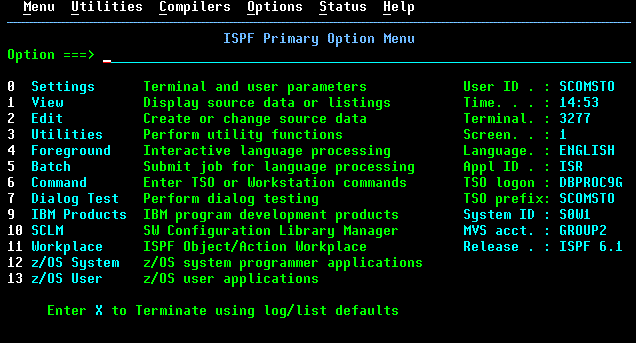
Menu principal d'ISPF

Prenons comme exemple l'affichage d'une table de paramétrage, pour afficher le contenu d'une table il faut :

  • Appuyer sur la touche ECHAP (qui efface l'écran)
  • Taper X RCD071
  • Valider avec Enter
  • Saisir le nom de la table de paramétrage
  • Interroger son contenu avec PF3

L'émulateur permet de lancer des séquence de touches de plusieurs manières :

  • à l'aide d'un raccourci clavier ;
  • à l'aide d'un pad, ensemble paramétrables de boutons auxquels on peut associer des actions, dont une séquence de frappes de touche. C'est là que ça commence à devenir intéressant, je vais y revenir.

En reprenant l'exemple du listage d'une table de paramétrage, je peux facilement associer le listage de la table1 à un raccourci, et celui de la table2 à un autre.

Problème de place

Et c'est là qu'on s'aperçoit vite des limites des raccourcis claviers : leur nombre est forcément limité, d'autant plus que bon nombre de combinaisons sont déjà prises : il est illusoire de vouloir se passer de CTRl+C et de CTRL+V par exemple.
L'autre problème est celui de la mémoire, pas celle du PC, mais celle de celui ou celle qui est derrière le clavier : pas facile de mémoriser toutes ces combinaisons.

Le pad

J'ai gardé pour maintenant cette histoire de pad : mais qu'est-ce que ça apporte ? Et bien ça « libère » de la mémoire : la vocation du raccourci est disponible sous les yeux, et ça, j'achète !

Moyennant un petit travail de classification en sous-groupes, je retrouve facilement tous mes raccourcis en un clin d'œil.
Mais n'avoir à disposition que des boutons, est-ce suffisant ?
Pas vraiment, parce que libellé d'un bouton, c'est statique.

Le cas Pacbase

PACbase est un AGL (NdM: propriétaire) générant du COBOL, intégrant un dictionnaire de données. On y stocke :

  • des données ;
  • des structures de données ;
  • des programmes ;
  • des textes pour la documentation ;
  • etc.

Ce qui est important pour le sujet que j'évoque que la navigation dans ce référentiel est entièrement textuelle, on accède aux entités au travers d'une ligne de commande :

  • j'affiche la donnée toto en tapant E toto ;
  • j'affiche la documentation de donnée toto en tapant e toto gc (ou si je suis déjà en train de consulter la donnée toto en tapant -gc) ;
  • j'affiche un programme titi en tapant p titi, sa documentation en tapant p titi gc
  • etc.

C'est là qu'on s'aperçoit de limite des boutons (même si c'est mieux que les raccourcis) : pas question de créer autant de boutons que d'entités à accéder.

L'invite de commande « universelle »

Il se trouve que l'interface principale du site central (hors applications métiers) qui s'appelle ISPF (NdM: propriétaire) est également textuelle est qu'elle possède également une ligne de commande.

J'ai donc cherché à mettre au point une interface dans laquelle je taperai mes commandes, qui seraient mémorisées et qui, à l'instar du comportement d'un terminal, faciliterait le rappel de commandes.

Au passage, j'ai écrit une macro « universelle » qui permet d'interagir de manière scriptée avec l'émulateur, en utilisant un pseudo langage très basique, mais permettant des actions reproductibles : saisie de paramétrage (permettant une « saisie » d'environnement en environnement), réinitialisation de mot de passe avec envoi de courriel avec les mots de passe provisoire, etc.

Je me suis appuyé sur différents modules proposés par l'émulateur 3270, avec comme limites l'univers site central. Or il se trouve que j'avais envie d'automatiser plein d'autres actions sur d'autres logiciels (comme lancer les règles dans Outlook par exemple).

Les logiciels de raccourcis sous Windows

Clavier+

C'est alors que j'ai découvert :

  • Clavier+ (GPLv3), un logiciel libre qui a la bonne idée de pouvoir être lancé en ligne commande avec une documentation tout en français ;
  • les pages HTA, qui sont des fenêtres écrites en HTML / Javascript / CSS.
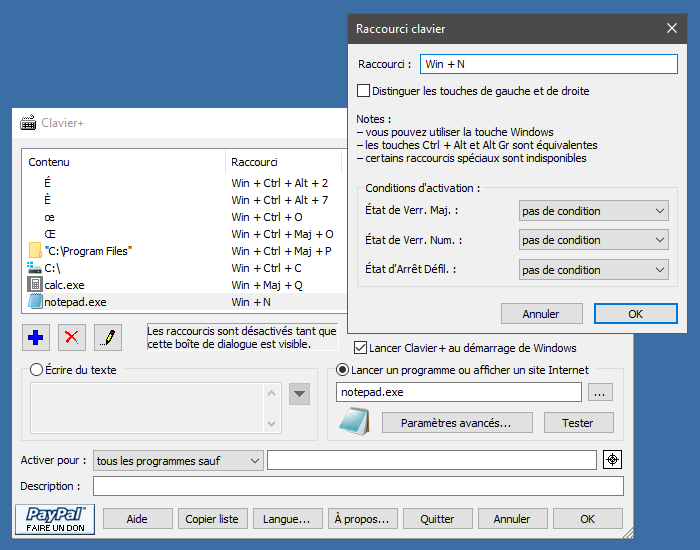
Clavier+

J'écris mes pads en HTA, avec des liens qui lancent des actions via Clavier+. Et là, c'est quasi parfait : je paramètre Clavier+ pour lancer une fenêtre HTA quand je tape sur la touche PAUSE (facile d'accès et peu utilisée en standard) qui m'affiche des boutons d'actions et des invites de commandes, fenêtre qui se masque une fois l'action lancée et que je rappelle en rappuyant sur PAUSE. J'ai donc Clavier+ qui lance une fenêtre qui permet de lancer plein d'actions via Clavier+. Pas toujours facile de s'en sortir avec du Javascript pas toujours reconnu dans ses dernières fonctions pourtant bien pratique, et surtout, pas simple de gérer la persistance des données, même si je m'en suis sorti à l'aide de cookies.

AutoHotKey

Je change d'entité dans le groupe qui m'emploie, et patatras, pas de Clavier+ dans le centre logiciel ! Je me lance dans une demande d'intégration de Clavier+, demande qui traîne, et voilà que je découvre que si Clavier+ n'est pas proposé, c'est qu'à sa place figure AutoHotKey (GPLv2)
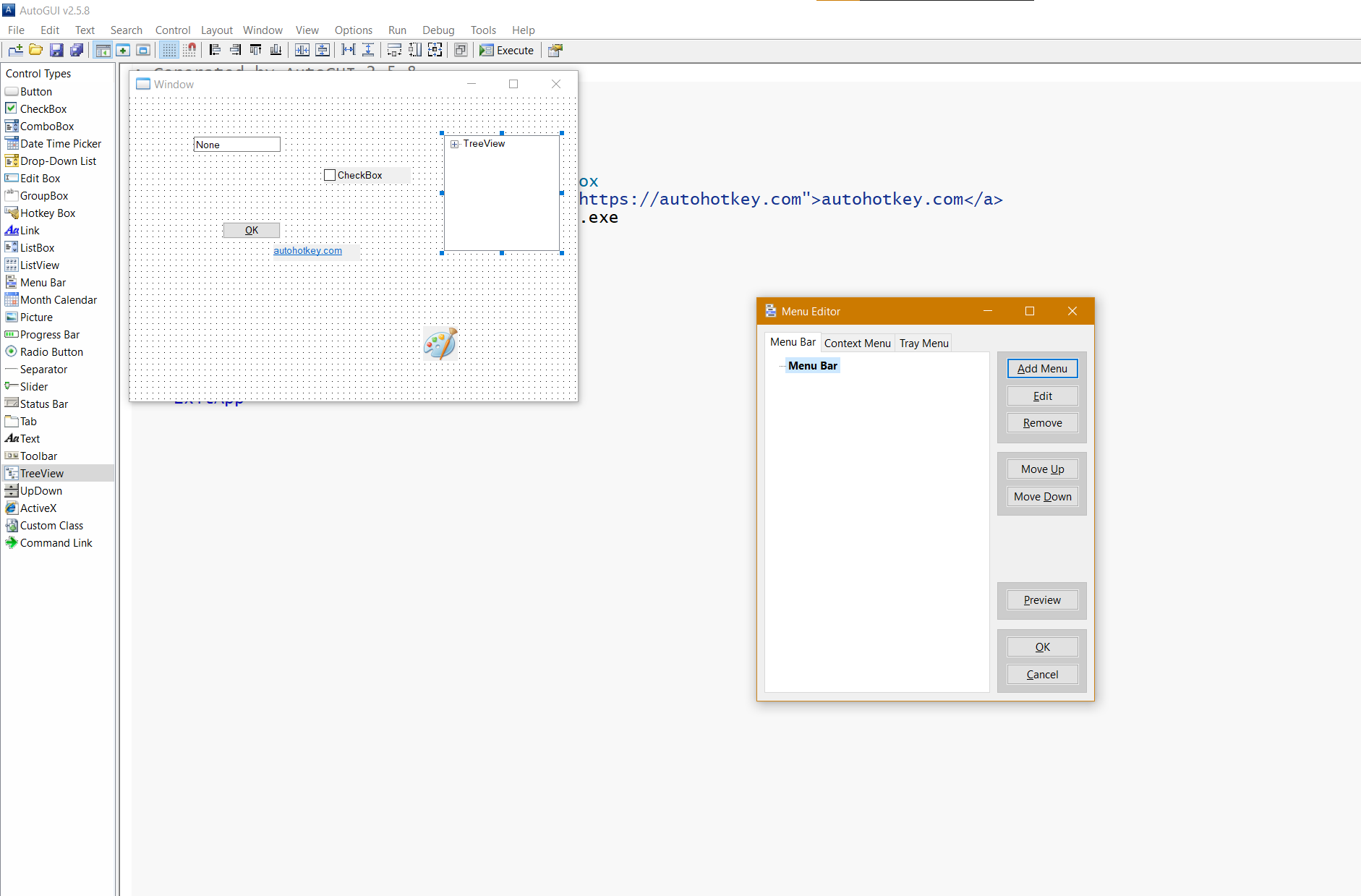
Exemple de GUI AHK

\o/ : apothéose : Autohotkey (AHK), c'est clavier+ puissance 1 000 ! Ça gère les raccourcis — heureusement —, mais aussi et surtout les interfaces graphiques, les fichiers, etc. C'est très puissant, mais la documentation — tout en anglais — est parfois un peu absconse (Clavier+ c'est juste génial à ce niveau).

Fonctionnalités communes

  • Activation d'une fenêtre par son titre
  • Restriction de l'usage d'un raccourci à une fenêtre donnée (via son titre)
  • des configurations séparables par fichiers

Ce qu'apporte AHK

  • les interfaces graphiques
  • interaction avec le système de fichiers
  • la superposition des configurations
  • et beaucoup plus encore

En résumé

Pour celles et ceux qui souhaitent découvrir comment facilement paramétrer des raccourcis claviers, Clavier+ et fait pour vous. Pour aller (beaucoup beaucoup) plus loin AutoHotKey ouvre tout un univers de possibilités.

PS

Quelque raccourcis que j'utilise tout le temps

  • rappel des commandes passées (PACbase et ISPF)
  • lancement des règles sous Outlook
  • recherche des erreurs de compilation COBOL sous VScode
  • configuration et tri des SYSOUT sous SDSF

Tip

Ne pas rager pas si votre tout dernier raccourci ne fonctionne pas avec Clavier+ : vous avez certainement laissé la fenêtre de configuration ouverte…

Commentaires : voir le flux Atom ouvrir dans le navigateur

  •  

Comment mettre un accent à une lettre majuscule À, É, È, Ç, Î, Ô, Û pour Windows en 2026

clavier

Vous cherchez comment faire un É majuscule, un À ou un Ç sur votre PC ? Plus besoin de copier-coller depuis Google. Que vous ayez un pavé numérique ou non, voici les 5 méthodes incontournables en 2026 pour accentuer vos majuscules sous Windows. Du raccourci clavier rapide (Alt + 144) aux astuces automatiques sur Word, ne faites plus l'impasse sur l'orthographe.

  •  
❌