Vue normale

Skylum Luminar Neo Summer Sale: up to 70% off

Par : PR admin
6 juin 2026 à 17:28


Skylum has launched a new Luminar Summer Sale with discounts of up to 70%. The campaign runs June 5-28, 2026. Here are the details:

For new users:

  • Desktop Perpetual – $119 / €99 + free Neo video course
  • Cross-device Perpetual – $149 / €129 + free Neo video course
  • MAX Perpetual – $164.99 / €134.99 + free Neo video course + free gift

For existing users:

  • Cross-device Perpetual – $99.99 / €89.99 + free Neo video course
  • MAX Perpetual – $109.99 / €99.99 + free Neo video course + free gift

Luminar Neo is an AI-powered photo editor that makes it easy to achieve professional results with simple and fast edits (available on both desktop and mobile). All plans are perpetual (one-time purchase) licenses with no subscriptions required. The Max plan unlocks the complete experience: desktop + mobile apps, plus access to the creative assets library (skies, overlays, LUTs, presets, and more to fuel your creativity). Here are the main benefits:

  • AI-powered editing made simple
  • Professional results with minimal effort
  • Works across desktop + mobile
  • Strong value with lifetime licenses

The post Skylum Luminar Neo Summer Sale: up to 70% off appeared first on Photo Rumors.

Aiarty Image Enhancer: Restore Old Photos and Recover Blurry Faces with AI (49% Lifetime License)

Par : PR admin
23 mai 2026 à 18:27

Aiarty Image Enhancer: Restore Old Photos and Recover Blurry Faces with AI (49% Lifetime License)

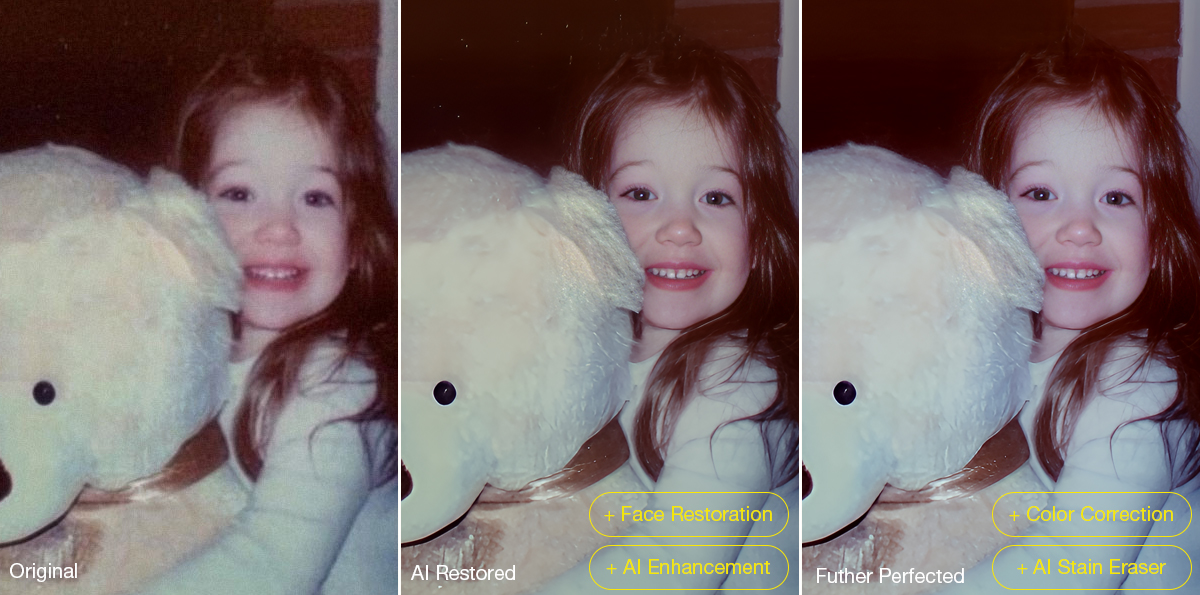
Restoring old photos is rarely as simple as increasing sharpness or removing visible damage. Many photographers and families are now digitizing decades-old prints, film negatives, and family albums to preserve them before physical deterioration becomes irreversible. However, scanned family photos and aging film prints often suffer from multiple issues simultaneously, including faded colors, scratches, dust, low-resolution scans, compression artifacts, and facial detail loss accumulated through years of storage, rescanning, and digital compression.

For photographers and archive enthusiasts, the challenge is restoring clarity without destroying the original texture and character of the image. Film grain is often mistaken for digital noise, facial details become overprocessed, and low-quality scans leave limited data for accurate restoration or upscaling.

Traditional workflows still rely heavily on manual Photoshop adjustments such as denoising, retouching, sharpening, scratch removal, and color correction, especially when processing larger photo archives or film scan collections.

AI-assisted restoration tools are increasingly being used to simplify repetitive cleanup tasks within a broader editing workflow. Designed around a restoration-oriented approach rather than one-click filters, Aiarty Image Enhancer combines denoising, deblurring, face recovery, scratch cleanup, upscaling, and color correction into a single workflow pipeline while maintaining more natural-looking results.

To celebrate its anniversary, the software is currently available at 49% OFF lifetime pricing, with the coupon code ANNIVERSARY providing an extra $5 off single products and $10 off bundles. The special offer runs through June 8.

The lifetime plan includes:

  • Use on up to 3 Windows or Mac computers
  • Unlimited access to all features
  • Free lifetime upgrades and priority technical support
  • 30-day money-back guarantee

How Aiarty Image Enhancer Fits Into Modern Photo Restoration Workflows

Rather than functioning as a one-click AI filter, Aiarty Image Enhancer is designed around a workflow-oriented approach for restoring old photos, film scans, and archived images while maintaining natural-looking detail.

A video demonstration showing real restoration results can be viewed below:

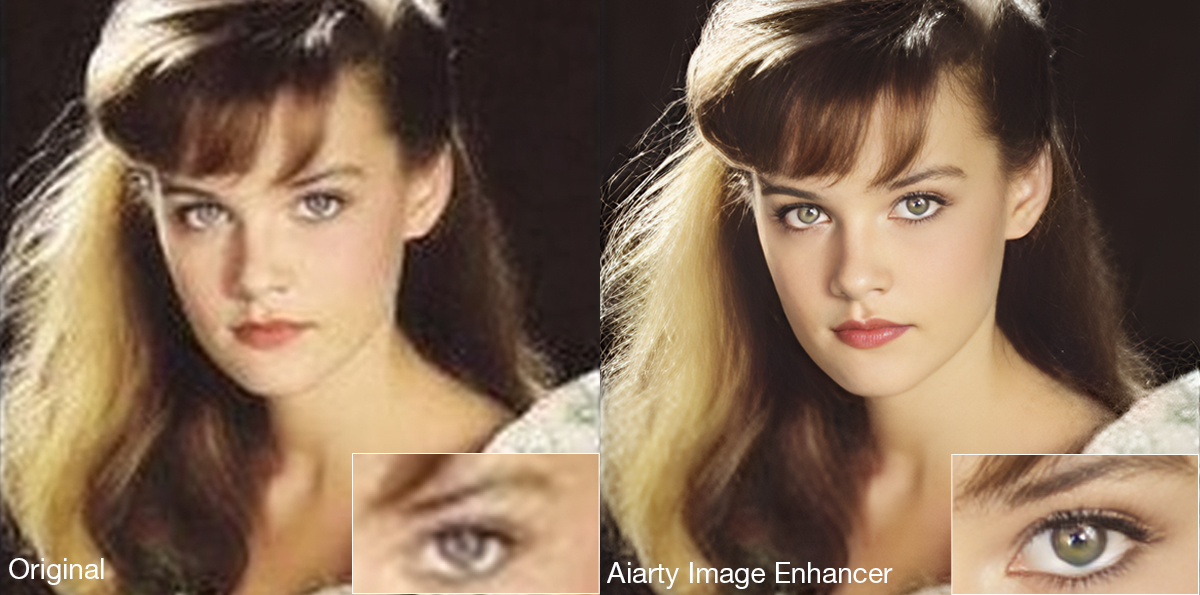
Its AI denoise and deblur tools help recover clarity from noisy or slightly soft scans without aggressively removing texture. A built-in Strength slider allows more controlled adjustments, which is particularly useful when working with film grain or older portraits where overprocessing can quickly create artificial-looking results.

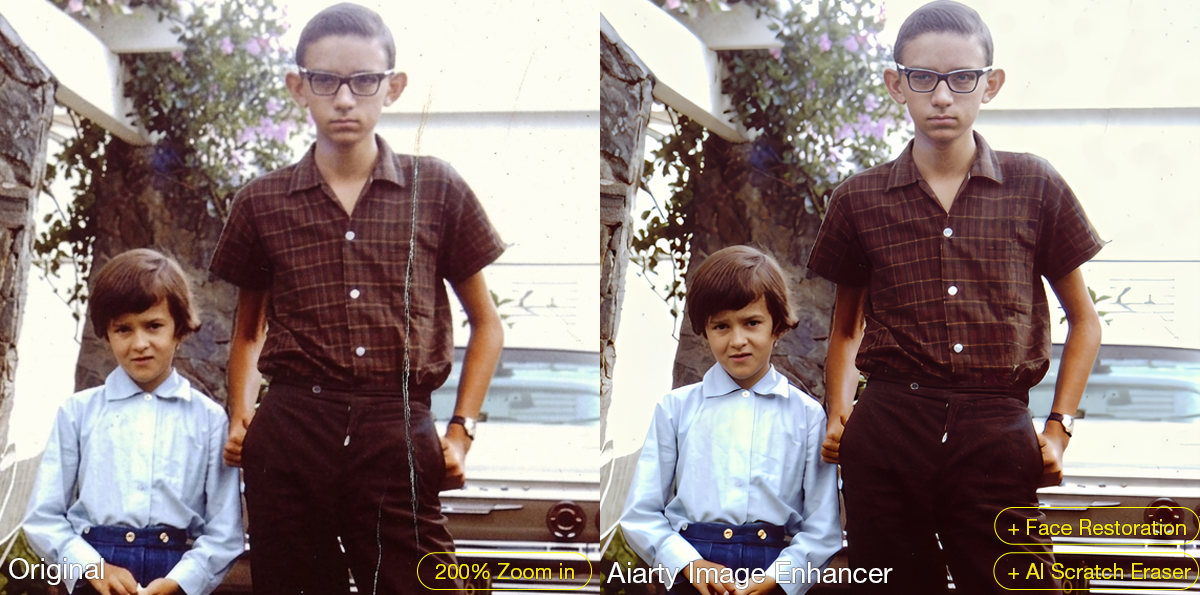
The latest Face Restoration improvements focus on rebuilding blurred facial areas while preserving realistic skin texture and facial structure. For damaged prints, the integrated AI Eraser can remove dust spots, scratches, stains, fold marks, and other small distractions commonly found in archived photographs.

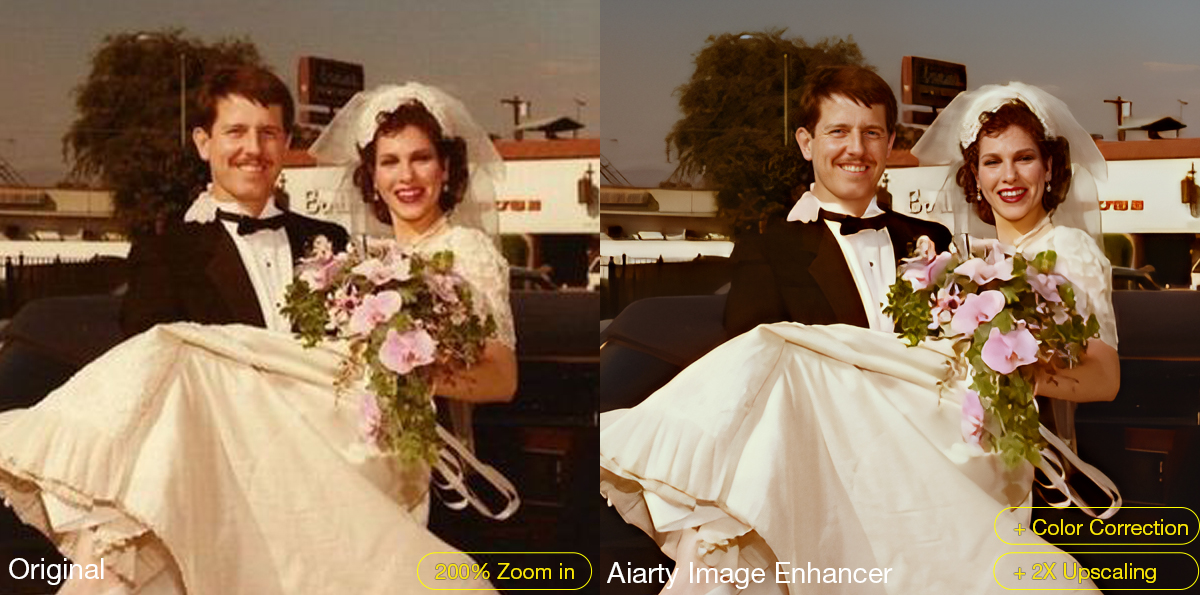
The software also supports AI upscaling for printing, digital archiving, and recovering low-resolution scans. Upgraded color controls help correct faded tones and yellow aging, while TIFF/DNG export support improves compatibility with Lightroom, Photoshop, and non-destructive editing workflows. Batch processing can further simplify repetitive cleanup work across multiple images or film scans.

A Practical Workflow for Restoring Old Photos

Step 1: Scan the Original Photo Properly

The quality of the restoration process still depends heavily on the original scan. For best results, scan photos at least 300dpi or higher, use TIFF when possible, avoid repeated JPEG compression, and clean the scanner surface before digitizing older prints.

Step 2: Reduce Noise and Upscale the Photo

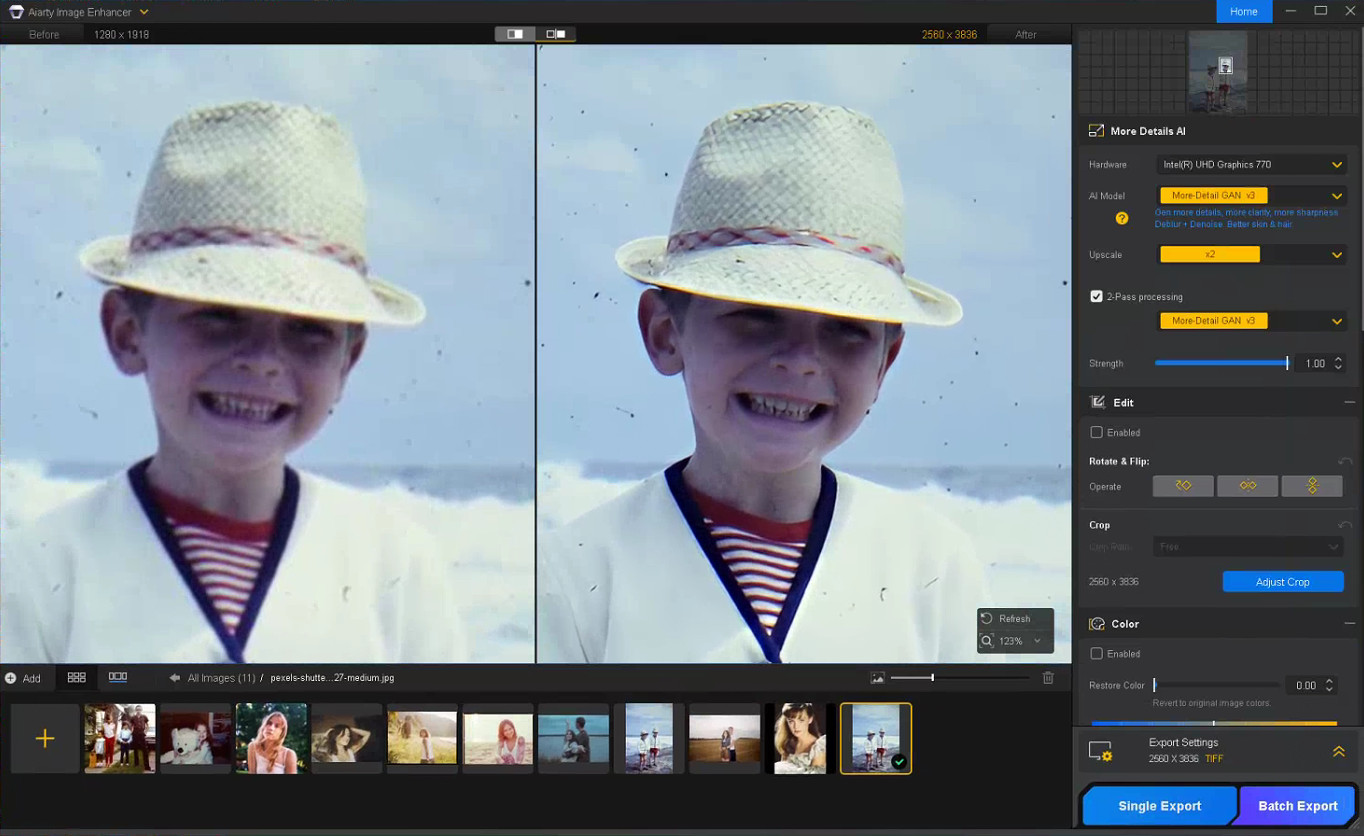
The first stage of restoring old photos usually focuses on improving image clarity while preserving the original texture of the photo. In Aiarty Image Enhancer, denoising, detail enhancement, and AI upscaling are processed together within the same AI pipeline.

Choose a suitable AI model and upscale factor depending on your old/damaged photo restoration goal. Using x1 applies denoising and enhancement only, while higher upscale settings can help AI upscale photos from low-resolution scans and prepare restored photos for printing or digital archiving without heavily over-smoothing fine details.

Step 3: Restore Facial Details Carefully

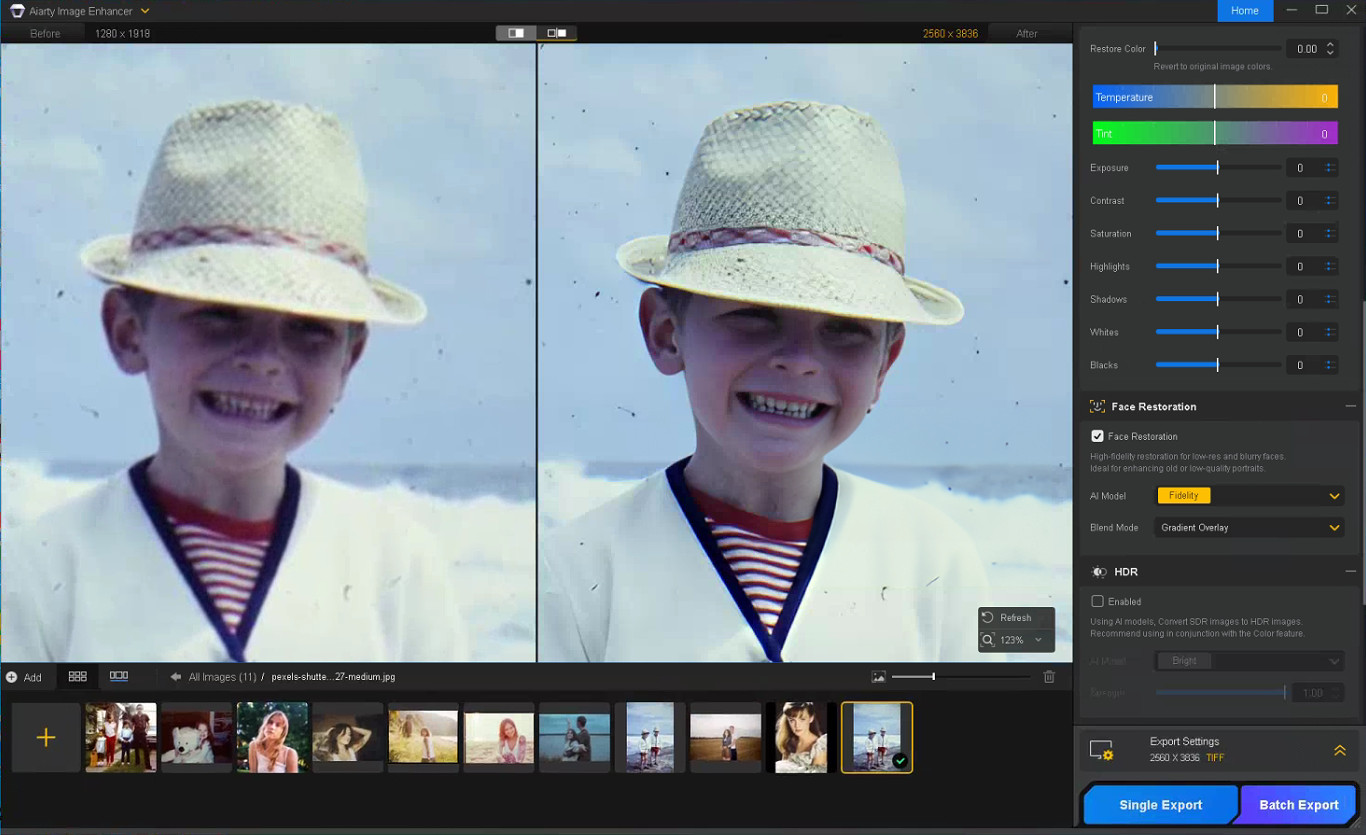
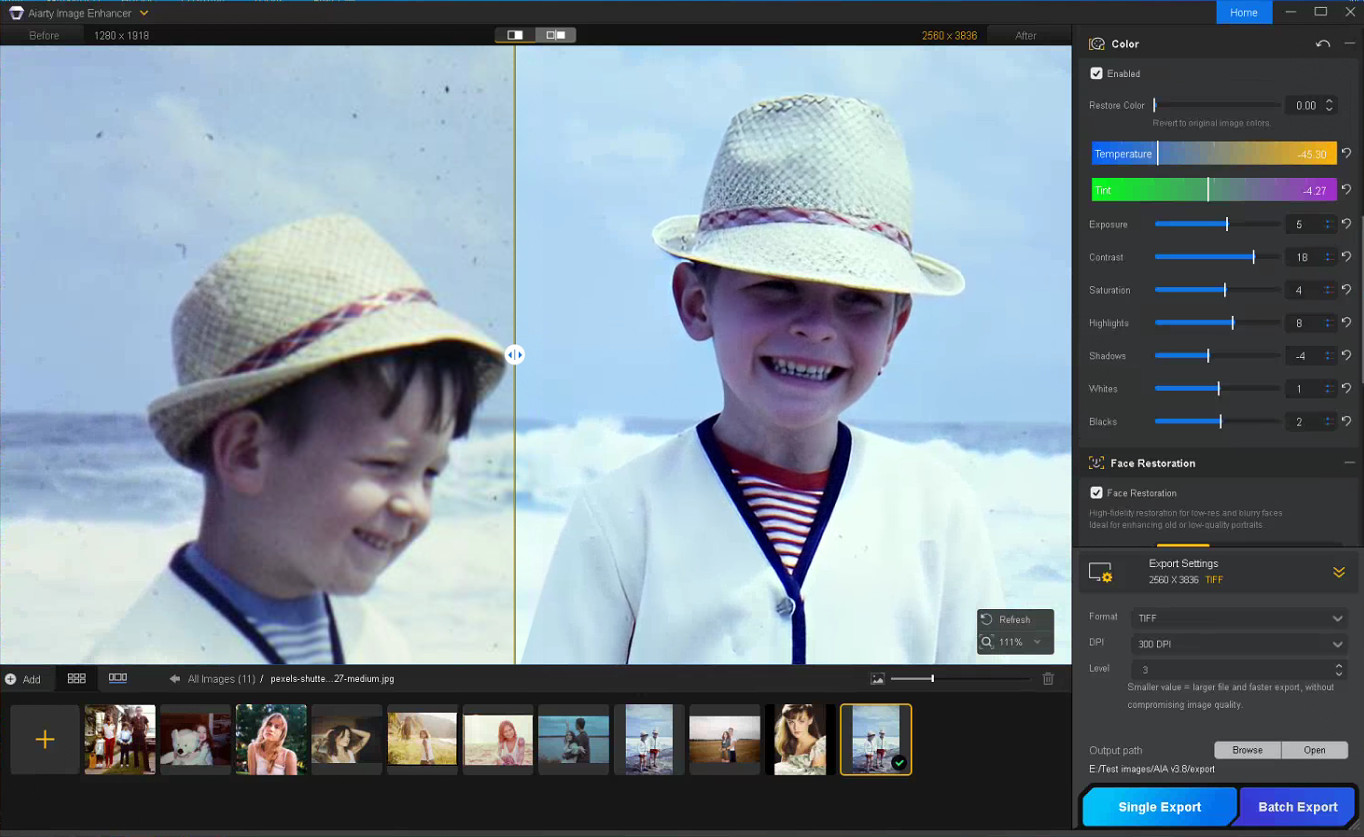
Enable Face Restoration and choose the Fidelity mode to better preserve the original facial structure and maintain more realistic-looking results. Rather than aggressively sharpening every facial feature, Aiarty’s Face Restoration focuses on recovering eye clarity, hair detail, facial edges, and natural skin texture while avoiding an over-smoothed or artificial appearance.

Step 4: Remove Scratches, Dust, and Small Damage

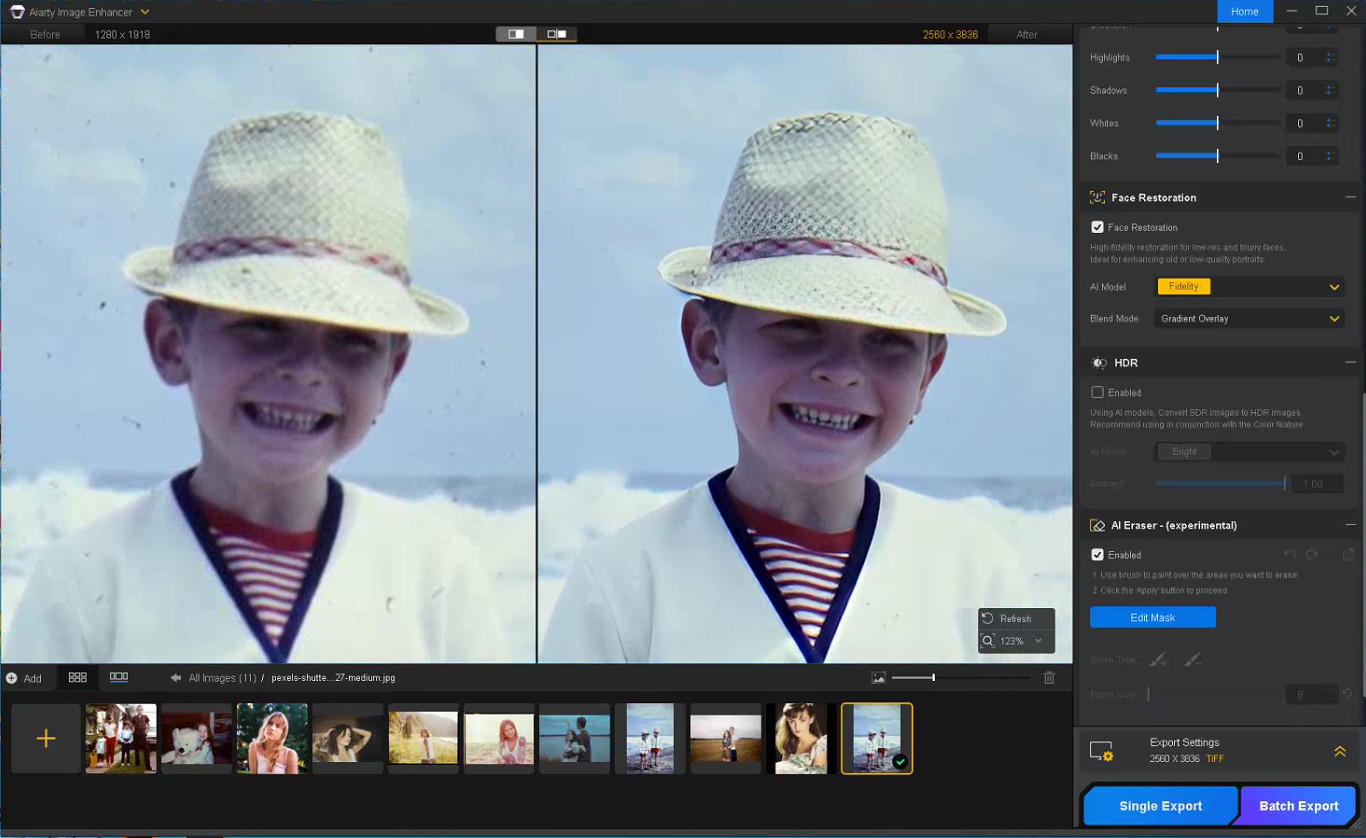
Enable the AI Eraser and mask scratches, stains, fold marks, or other distracting elements. Working in smaller sections with a properly adjusted brush size generally produces more natural-looking results than masking large areas at once.

Step 5: Correct Faded Colors and Improve Contrast

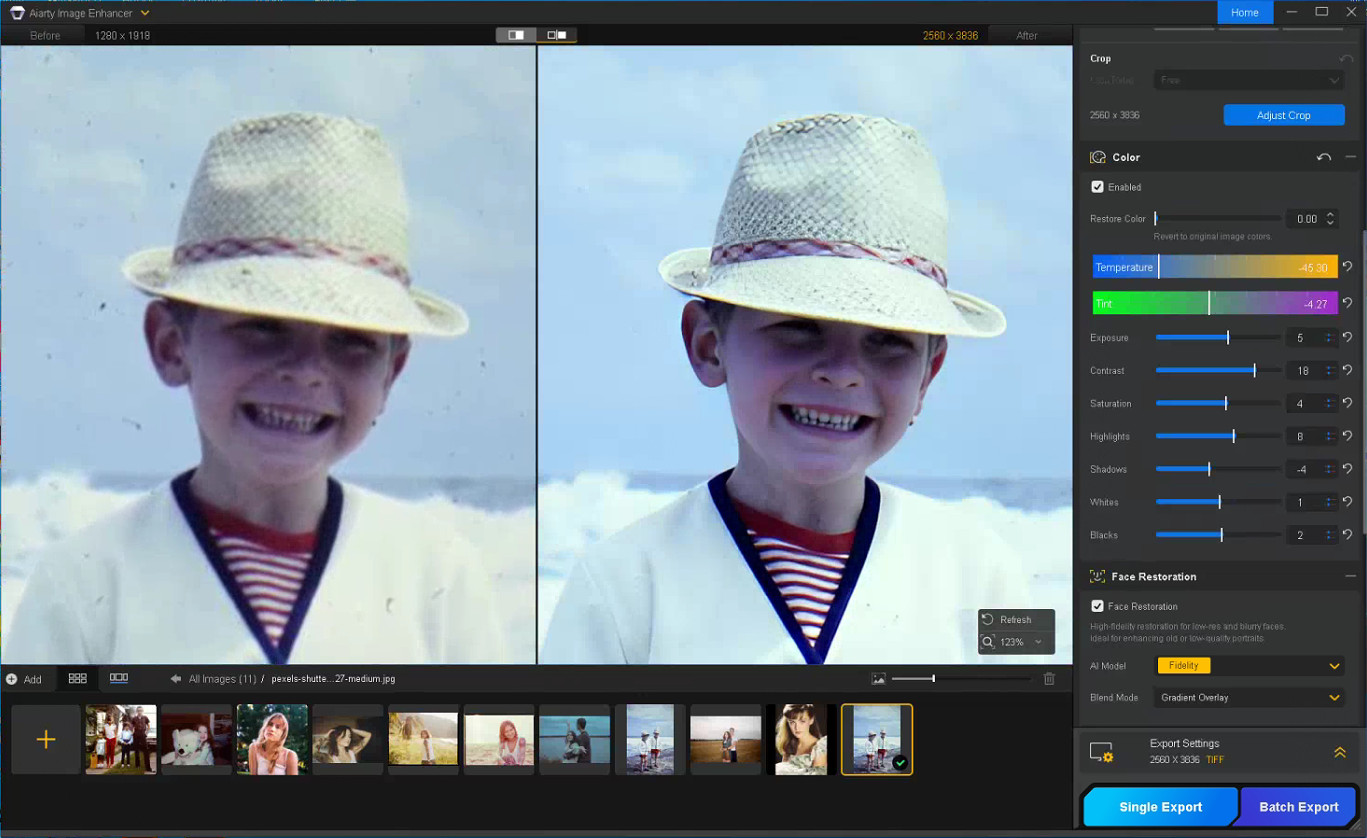
With the Color option enabled, you can fine-tune temperature, tint, contrast, exposure, shadows, and other parameters to correct yellow tint, faded contrast, washed-out shadows, and uneven color fading commonly found in older photos, helping restore depth and readability without making the image look overly processed.

Step 6: Export the Restored Photo

Once restoration is complete, choose the output format, DPI, and quality settings before exporting the final image. TIFF and DNG formats are recommended for preserving image quality and maintaining compatibility with Lightroom and Photoshop workflows.

Notes for Getting Better Restoration Results

Old photo restoration results can vary depending on the condition of the original image, so small workflow adjustments often produce better outcomes.

Trying Different AI Models

Each AI model in Aiarty Image Enhancer is optimized for different enhancement scenarios.

  • More-Detail GAN v3: Enhances detail and sharpness while reducing blur and noise
  • AIGCsmooth v3: Optimized for AI-generated images and smoother surfaces
  • Real-Photo v3: Designed for high-quality photos with more natural detail recovery

Experimenting with different AI models can help identify which one produces the most natural-looking old photo restoration for a specific image.

Adjusting the Strength Setting

If the restored image looks slightly waxy or overprocessed, lowering the Strength value can help preserve more natural texture and finer details.

Restoring Before Upscaling

For printing or digital archiving, it is generally recommended to complete denoising and face correction before applying upscaling, as cleaner base images usually produce more stable results.

In some cases, sequential upscaling (such as 2x + 2x) may also preserve detail better than applying a direct 4x upscale in a single pass.

Using Face Restoration Selectively

Face Restoration works best on photos where facial details are still partially visible but have become soft or faded over time. Fidelity mode keeps results closer to the original image, while Rebuild focuses more on reconstructing missing facial details.

Final Thoughts

The photo restoration workflow used in Aiarty Image Enhancer helps streamline the process while preserving more natural-looking detail compared to isolated manual adjustments. By combining cleanup and enhancement into a structured sequence, it reduces repetitive Photoshop work and improves consistency across different image types.

Beyond old photo recovery, the same workflow can also improve compressed social media uploads, AI-generated images, low-quality web photos, and images prepared for posters or large-format printing.

With the anniversary promotion, users can get the Aiarty Image Enhancer Lifetime License for only $74 (up to 52% OFF) with the code “ANNIVERSARY”, including lifetime access, lifetime free updates, and a 30-day money-back guarantee with no hidden fees.

The post Aiarty Image Enhancer: Restore Old Photos and Recover Blurry Faces with AI (49% Lifetime License) appeared first on Photo Rumors.

The latest Topaz Labs updates

Par : PR admin
14 avril 2026 à 22:05


Here are the latest Topaz Labs updates:

TOPAZ PHOTO

  • True Detection Model: Automatically identifies false resolution images and corrects them before upscaling, improving overall image quality (Desktop only).

TOPAZ VIDEO

  • This update introduces new models designed to improve both speed and output quality across animation, generative, and live action content.
  • Gaia 2 (available to all users): 2x upscaling model built specifically for animation workflows like stop motion and motion graphics.
  • Starlight Fast 2 Local (Pro Only): Local, speed-focused video upscaling model delivering high quality results up to 5x faster, with improved face detail and motion stability.
  • Starlight HQ Local (Pro Only): Local video upscaling model built for mid-to-high-quality content with a good balance of detail and sharpness while keeping the intent of the original video source.

TOPAZ ASTRA

  • Starlight 2.5 (SLP-2.5): Groundbreaking video upscaling model built to enhance realism and reduce plastic, artificial-looking artifacts while upscaling clips from the latest GenAI models to 4K.
  • Enhances AI-generated content into cleaner, more realistic 4K.
  • Improves soft or overly processed visuals, especially in face-heavy shots.
  • Performs well on archival footage from the 2000s onward when the source is relatively clean.

The post The latest Topaz Labs updates appeared first on Photo Rumors.

Remove Complex Backgrounds with Precision: Aiarty Image Matting for Photographers (Exclusive Deal Inside)

Par : PR admin
24 mars 2026 à 12:14


Beyond the Pen Tool: A Faster Way to Handle Complex Masking with Aiarty Image Matting (guest post)

We’ve all been there: the shoot was perfect, but now you’re zoomed in at 400%, wrestling with a stray strand of hair that just won’t stay in the selection. It’s the least creative part of photography, yet it’s often where the professional polish happens.

The irony of the current AI boom is that while it’s easier than ever to remove background from photo files with a single click, the results rarely hold up on a high-res monitor. Even when you remove background in Photoshop using the latest Select Subject features, the AI tends to treat edges as a binary choice. It works for a clean product shot, but it falls apart on a bride’s translucent veil or a portrait against a leafy backdrop, leaving that jagged, “cut-out” look.

This is when the distinction between a simple “remover” and true Image Matting becomes critical. What I was really looking for was something that understands the physics of light and transparency – the sub-pixel details that make a subject feel natural in its environment. In testing different tools, I came across Aiarty Image Matting, which stood out in how it handles these “impossible” edges with a level of nuance I haven’t seen in most standard plugins.

It’s worth a look for photographers who frequently deal with complex selections and high-resolution workflow. Now PhotoRumors readers can access an exclusive offer to get Aiarty Image Matting Lifetime License at up to 43% OFF, with benefits including:

  • Use on 1 Windows + 1 Mac, 3 Windows or Mac computers
  • Unlimited access to all features
  • Permanent free upgrades and technical support
  • No subscription, no recurring cost

Why Aiarty Image Matting is the Secret to Professional Composites

The term “background removal” is a bit of a misnomer in professional circles. Most tools – from the built-in best background removal app on your phone to standard web filters – simply use a mask to hide pixels. This often results in a “cookie-cutter” effect where the edges look harsh and artificial.

Aiarty Image Matting operates on a different level. It uses dedicated AI models to calculate an “alpha matte,” which essentially determines the exact transparency of every single pixel on the boundary. Instead of a binary “in or out” choice, it understands that a stray hair or a glass edge is partially transparent. If you’ve ever wondered which ai tool is best for background removal for high-end work, the answer lies in how it handles these “soft” edges. Aiarty doesn’t just cut the subject out; it extracts it.

This extraction process achieves a level of sub-pixel precision that identifies details thinner than a single pixel – think individual eyelashes or the fuzz on a woolen sweater. It also solves one of the biggest headaches when you remove background from photo: color decontamination. We’ve all dealt with that annoying color spill, like a green tint on a model’s skin from a forest backdrop. Aiarty’s AI is trained to “clean” these edges, ensuring the subject looks natural when placed in a completely different lighting environment.

For things like steam, smoke, or a translucent bridal veil, the software preserves the true, semi-transparent nature of the material. This is a game-changer for anyone trying to make background transparent without losing the ethereal, airy quality of the original shot. By moving away from simple “erasing” and toward “intelligent extraction,” it finally bridges the gap between a quick social media edit and a gallery-ready composite.

Key Features: How Aiarty Streamlines Complex Masking

When you’re looking for the best background removal software, you’re really looking for consistency. You want a tool that doesn’t require you to go back in with a layer mask to fix 20% of the edges. Most standard matting tools rely on simple edge detection that often fails the moment things get slightly out of focus or highly detailed. Aiarty Image Matting differs by using deep-learning models that actually understand the “semantic” structure of a photo – it knows the difference between a strand of hair and a stray digital artifact. Instead of just tracing a line, it reconstructs the edge data based on real-world light and texture.

In my time testing the software, four specific capabilities stood out as legitimate game-changers for a professional workflow:

  • Hair-Level Fidelity: This is the ultimate stress test. Whether it’s a high-fashion portrait with flyaway hair or a wildlife shot of a wolf’s fur, Aiarty’s AI models are trained on millions of real-world edge scenarios. It identifies individual strands that traditional “Select Subject” algorithms usually blur or chop off. If you’ve ever wondered how to remove white background from image files with fine texture, this level of detail is a massive relief.
  • Complex Transparency Awareness: Most “one-click” apps treat glass, smoke, or veils as solid objects or just erase them. Aiarty actually understands the transparency levels. This means if you have a shot of a bride in a lace veil, the software preserves the semi-transparent layers, allowing the new background to show through naturally. It’s easily the best ai tool to remove background from delicate, translucent subjects.

  • Seamless Background Replacement: Beyond just cutting things out, the tool makes it remarkably easy to change background of photo assets for creative composites. It handles the edge blending so well that you don’t get that “pasted-on” look. You can drop in a solid color for a clean e-commerce shot or a complex landscape for a fine-art piece, and the lighting and transparency on the edges remain believable.

  • Privacy and Speed via Local Processing: This is a big one for me. Many “best free ai background remover” tools are browser-based, meaning you have to upload your high-res (often sensitive) client work to a cloud server. Aiarty runs entirely on your local GPU. It’s faster, more secure, and allows you to automatically remove background elements from an entire folder of RAW files in a single batch, without hogging your bandwidth.

Instead of just being another best background removal app for casual use, it feels like a specialized instrument designed to handle the 10% of “impossible” masking jobs that usually take up 90% of our editing time.

Aiarty Image Matting Real-World Scenarios

In practice, a tool like this isn’t just about saving a few minutes; it’s about enabling shots that would otherwise be a nightmare to edit. I’ve been testing Aiarty across a few common scenarios where most “best background removal app” contenders usually fail:

  • Portrait & Fashion Photography: We’ve all struggled with how to remove background from a subject with flyaway hair or fur. Standard AI usually “muds” the edges. Aiarty preserves individual strands, making the transition to a new background look organic. It’s a lifesaver for high-end beauty retouches where the halo effect is a deal-breaker.

  • Commercial & Still Life: If you’ve ever tried to make background transparent for a glass bottle, a liquid splash, or a watch face, you know the refraction usually gets ruined. This tool actually maintains the transparency of the material, allowing the new environment to show through naturally. It’s much faster than manually painting alpha channels for product composites.

  • High-Volume E-commerce: For those of us who need to remove background elements across a hundred RAW files locally, the batch processing feature is a massive win. You aren’t tethered to a slow cloud upload, and the consistency across the set – keeping the same edge softness – is much higher than manual masking.

By handling the heavy lifting of the selection process, it lets you get back to the creative part: the color grading, the composition, and the storytelling.

Final Thoughts

In an industry that’s increasingly shifting toward subscription-based tools, having a reliable one-time purchase option still feels refreshing—especially for something as time-consuming as precise masking.

For photographers who regularly deal with fine details like hair, transparency, or complex backgrounds, tools like Aiarty Image Matting can make a noticeable difference in both speed and final image quality.

It’s not just about saving time—it’s about getting results that hold up under close inspection.

At the time of writing, PhotoRumors readers can access an exclusive 43% discount on the lifetime license, making it a relatively accessible addition to a professional editing workflow.

The post Remove Complex Backgrounds with Precision: Aiarty Image Matting for Photographers (Exclusive Deal Inside) appeared first on Photo Rumors.

❌